7 Proven Ways to Fix Samsung Moisture Detected Error (2026 Guide)

When you purchase through links on our site, we may earn an affiliate commission which helps in keeping this website running. Here’s how it works.
Use the Code ref-09ngex to get 5% off from Samsung
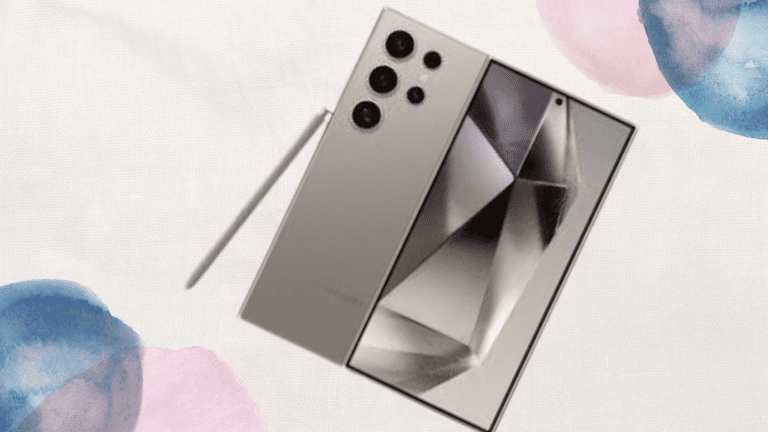
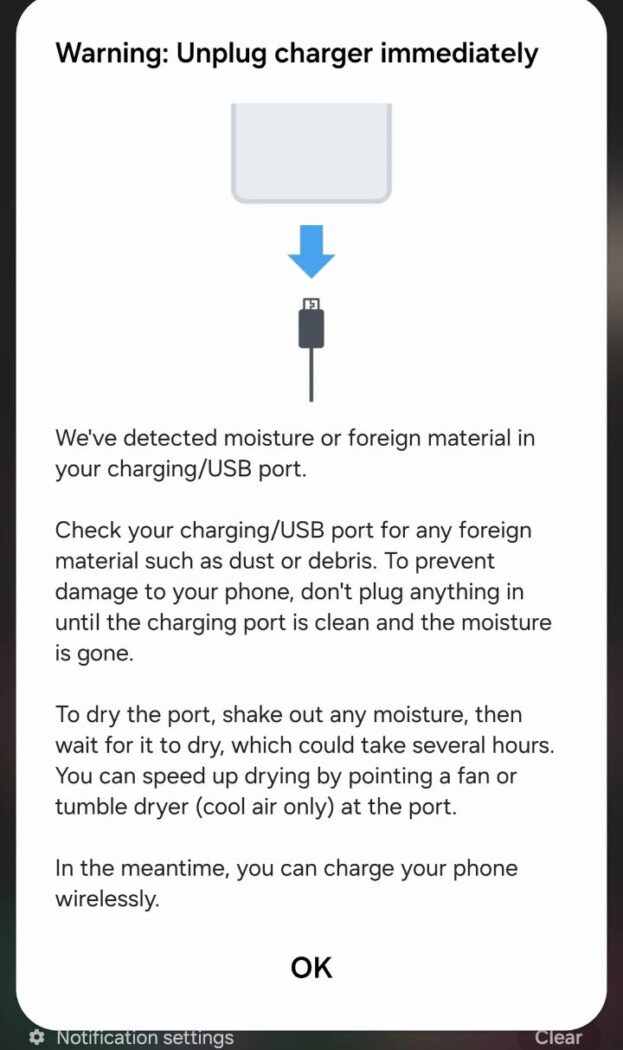
Seeing your Samsung device saying moisture detected error and your phone suddenly won’t charge? That’s a stressful spot to be in, especially when your battery is low and the phone looks completely dry. Even the S25/S26 series can have this problem
Many people have been in this situation, me included, this issue can block charging entirely, even when there’s no water in your device and is very common on Samsung Galaxy devices. The good news is that in most cases, it’s not serious and can be very easy to fix.
In this 2026 guide, you’ll learn 7 proven ways that I’ve used to fix the Samsung moisture detected error quickly and safely, plus what actually causes it and how to stop it from coming back.
Quick Fix Summary (Try This First)
If you’re in a hurry, start here:
- Restart your phone
- Clear USB Settings cache
- Use a wireless charger temporarily (if supported on your device)
- Dry the charging port properly
These quick steps fix the Samsung moisture detected error in most cases.
What Causes the Samsung Moisture Detected Error?
Samsung devices are designed to block charging when moisture is detected so it can prevent damage. However, the system isn’t perfect.
For most people, this error messages are caused by one of these:
- Actual moisture inside the charging port
- Humidity or condensation (very common)
- Dust or lint stuck in the port
- A software glitch in the USB detection system
This is why the error often appears even when your phone seems completely dry.
Fix 1: Dry the Charging Port Properly
If moisture is present, then you know it’s not a mistake your device brought up that error, so this is the first thing to do.
Turn off your phone and unplug any cable. Gently wipe the outer area with a dry cloth, then leave the phone in a cool, well-ventilated space for 30–60 minutes.
Avoid using heat (like a hair dryer), as it can damage internal components, althogh this seems like a way to remove moisture,you should not do it. Also skip the rice method, it’s slow and unreliable. Air drying is far safer and more effective.
Fix 2: Use a Wireless Charger (Instant Workaround)
If you need power immediately and your phone supports it, wireless charging is your best option.
Because it doesn’t use the charging port, it completely bypasses the Samsung moisture detected error. While this doesn’t fix the root issue, it will keep your phone usable while you try other solutions.
Fix 3: Restart or Force Restart Your Phone
A simple restart can clear temporary system bugs.
Start with a normal restart. If the error remains, press and hold the Power button + Volume Down button for a few seconds to force restart the device.
This refreshes the system and often removes the Samsung moisture detected error instantly.
Fix 4: Clear USB Settings Cache (Most Effective Fix)
This is one of the most powerful solutions, especially when the problem is software-related.
Follow these steps:
- Open Settings
- Go to Apps
- Tap the filter icon and enable Show system apps
- Find and select USB Settings
- Tap Storage
- Tap Clear cache
This resets how your phone detects the charging port and often eliminates the Samsung moisture detected error immediately.
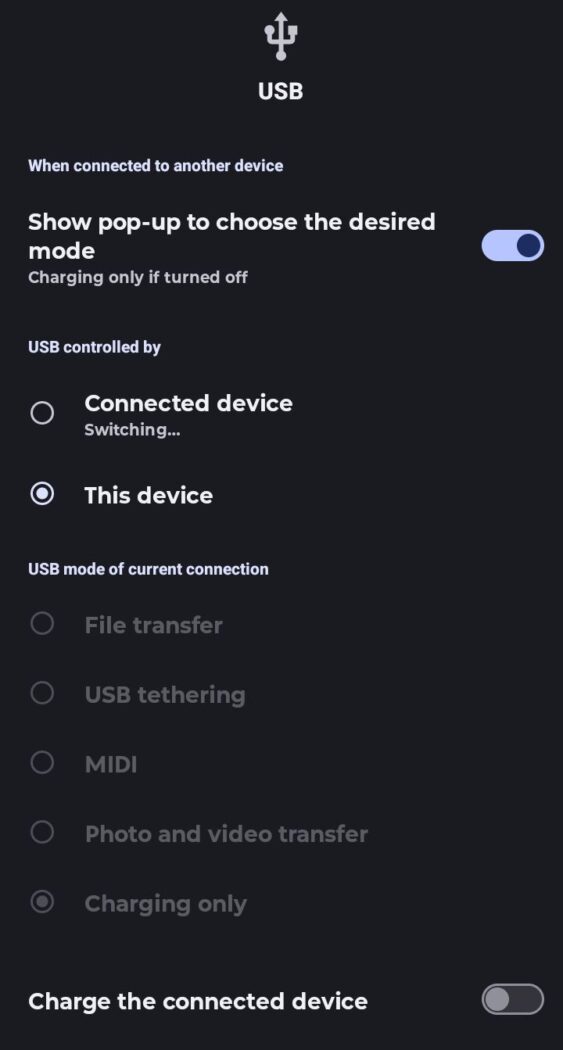
Pro Tip: If you’re still stuck, search for “USB Preferences” in your Settings. Ensure “USB controlled by” is set to “This device.” Sometimes the phone gets confused and tries to “charge” the cable instead of receiving power, which can trigger a false moisture alert. (Insert your screenshot here).
Fix 5: Turn Off Fast Charging Temporarily
Fast charging can sometimes interfere with the phone’s moisture detection system.
To disable it:
- Go to Settings
- Tap Battery
- Open Charging settings
- Turn off Fast charging
Plug your charger back in and check if the Samsung moisture detected error disappears.
Fix 6: Check for Dust or Debris in the Port
Even tiny particles can trigger the error.
Use a flashlight to inspect the charging port. If you see lint or dirt, gently remove it using a soft, non-metal object like a wooden toothpick.
Do not use metal tools or apply force, as this can damage the connectors inside the port.
Fix 7: Update Your Software (2026 Fix)
Samsung frequently fixes bugs like this through updates.
To check:
- Go to Settings
- Tap Software update
- Select Download and install
If the Samsung moisture detected error is caused by a system bug, updating your device can permanently resolve it.
What If the Samsung Moisture Detected Error Won’t Go Away?
If none of the fixes work, try these:
- Use a different cable and charging adapter
- Boot your phone into safe mode to rule out app interference
- Let the phone sit powered off for a longer period
- Visit an authorized Samsung service center
Persistent issues may indicate a damaged charging port.
Why does my Samsung phone say moisture detected when it’s dry?
This usually happens because of a software glitch, humidity, or debris inside the charging port, not actual water. In most cases, clearing the USB settings cache or restarting your phone fixes the issue quickly, in some other cases you have to give it some time before the message clears.
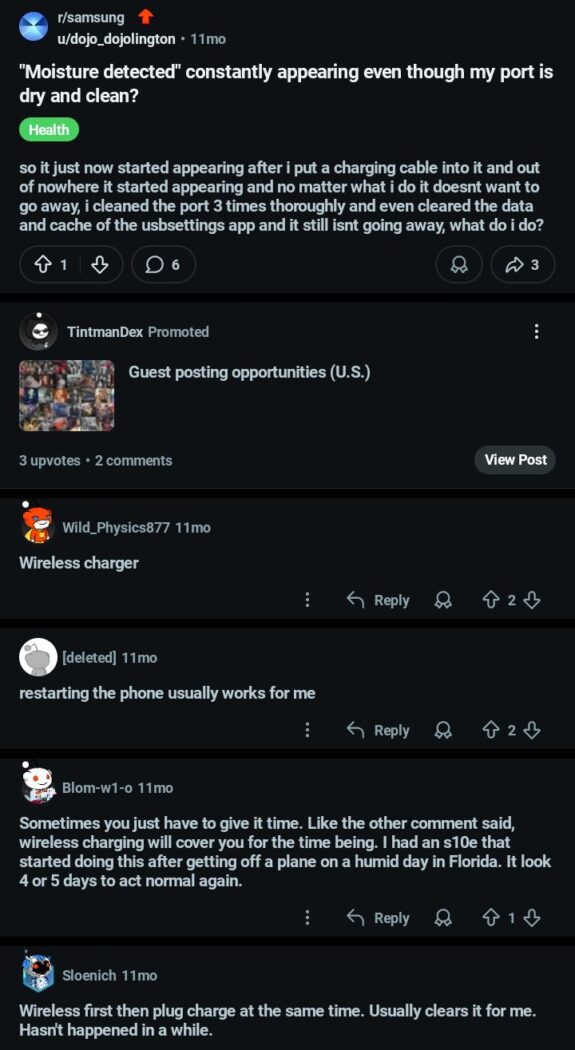
Pro Tip From Reddit: A user from Reddit complained about the moisture detected constantly appearing even though the port is dry and clean, most users suggested to use a wireless charger and restarting the phone, while some other users said to give it some time.
Conclusion
The Samsung moisture detected error is one of the most common charging issues on Galaxy devices, but it’s rarely serious.
In most cases, simple fixes like clearing the USB cache, restarting your phone, or drying the port properly will solve the problem within minutes. If not, a software update or deeper inspection usually does the trick.
Follow the steps in this guide, and you should have your phone charging again without any risk of damage.
When you purchase through links on our site, we may earn an affiliate commission which helps in keeping this website running. Here’s how it works.
Use the Code ref-09ngex to get 5% off from Samsung

About the Author: Ikhide Uanseoje
Welcome to SamUniverse! My name is Ikhide Uanseoje, the mind behind this website dedicated to everything Samsung. As a passionate tech enthusiast and lover, I specialize in delivering the latest news, in-depth reviews, and helpful guides about Samsung products, from smartphones and wearables to laptops and accessories.
Born and raised in Nigeria, I’ve always had a fascination with cutting-edge technology and how it shapes our lives. This passion led me to create SamUniverse, a platform where Samsung fans and tech lovers can explore innovations, tips, and updates that truly matter.
When I’m not writing, you’ll find me exploring new tech trends, brainstorming ideas for future posts, or working on ways to make this website your go-to resource for all things Samsung.
Stay tuned to SamUniverse as we uncover the best Samsung has to offer!