Best ways to integrate Galaxy Buds with Windows laptops

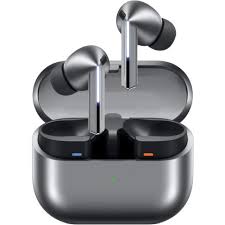
Wireless earbuds have become an important necessity for us during work, study, and entertainment. Samsung’s Galaxy Buds are among the most popular choices, thanks to their compact design, great sound quality, and seamless connection with Galaxy smartphones. But what if you want to pair them with your PC? The good news is that integrating them into your workflow is easier than you think. In this article, we’ll go through the Best ways to integrate Galaxy Buds with Windows laptops, ensuring you get the best audio experience whether you’re working on a project, attending online classes, or simply streaming your favorite shows.
Why Use Galaxy Buds with Windows Laptops?
Before jumping into the Best ways to integrate Galaxy Buds with Windows laptops, it’s worth understanding why this setup is so useful:
Convenience: No messy wires, just instant audio.
Portability: Galaxy Buds are light and travel-friendly, making them great for mobile professionals and students.
Versatility: You can use the same earbuds for your phone and laptop, switching easily between devices.
Features: Active noise cancellation and touch controls work just as well on Windows as on mobile.
Connect via Bluetooth Settings
The first and most direct method is using your laptop’s Bluetooth settings. Among the Best ways to integrate Galaxy Buds with Windows laptops, this one is the most straightforward.
- Open the Start menu and go to Settings > Bluetooth & devices.
- Put your Galaxy Buds in pairing mode by holding both touchpads until you hear a sound.
- Select Add device and choose your Galaxy Buds from the list.
Once paired, your Buds will automatically connect each time you open the case near your laptop.
Use the Samsung Galaxy Buds App for Windows
One of the Best ways to integrate Galaxy Buds with Windows laptops is through Samsung’s official software. While originally designed for mobile devices, Samsung now offers apps for PC integration. These apps unlock features like: Firmware updates Custom EQ settings Touch control customization
This gives you more control over your listening experience beyond the standard Bluetooth connection.
Pair Through Swift Pair on Windows
Windows laptops now support Microsoft’s Swift Pair, which makes connecting devices much quicker. If your Galaxy Buds are in pairing mode, you’ll see a pop-up notification on your laptop asking if you want to connect. This method is considered one of the Best ways to integrate Galaxy Buds with Windows laptops, especially for users who don’t want to dig through multiple settings menus.
Sync Through Samsung Account and Galaxy Ecosystem
If you’re already using Samsung apps on your laptop, like Samsung Flow, you can sync your Galaxy Buds across devices. This adds another layer of smooth integration, allowing you to answer calls, listen to music, or watch videos without manually switching. For Samsung ecosystem users, this ranks high among the Best ways to integrate Galaxy Buds with Windows laptops since it bridges the gap between mobile and PC experiences.
Optimize Sound with Windows Settings
Another often-overlooked method in the Best ways to integrate Galaxy Buds with Windows laptops is tweaking the sound settings after pairing. You can go into Sound Settings > Device Properties > Additional Device Properties and adjust enhancements like bass boost, virtual surround, or noise suppression. Doing this ensures you’re getting the best possible sound out of your Galaxy Buds when connected to Windows.
Common Issues and Fixes
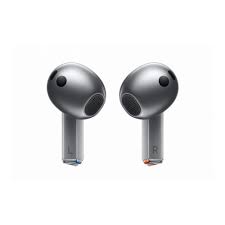
While trying the Best ways to integrate Galaxy Buds with Windows laptops, you might run into some issues. Here are quick solutions: Buds not showing up in Bluetooth list? Reset them by putting them back in the case and holding the touchpads for a few seconds. Audio lag during videos? Check the Bluetooth driver on your laptop and update it. Low sound quality? Make sure you’re connected through the right Bluetooth profile (A2DP for stereo audio).
Conclusion
The Best ways to integrate Galaxy Buds with Windows laptops are simple and accessible for anyone. Whether you’re pairing directly through Bluetooth, using Samsung’s software, or just taking advantage of Swift Pair, the process is quick and rewarding. With just a few steps, you can unlock seamless wireless audio that keeps you productive and entertained on your Windows laptop. So, if you’ve been wondering how to make the most out of your Galaxy Buds beyond your phone, now you have the tools to do it.
When you purchase through links on our site, we may earn an affiliate commission which helps in keeping this website running. Here’s how it works.
Use the Code ref-09ngex to get 5% off from Samsung

About the Author: Ikhide Uanseoje
Welcome to SamUniverse! My name is Ikhide Uanseoje, the mind behind this website dedicated to everything Samsung. As a passionate tech enthusiast and lover, I specialize in delivering the latest news, in-depth reviews, and helpful guides about Samsung products, from smartphones and wearables to laptops and accessories.
Born and raised in Nigeria, I’ve always had a fascination with cutting-edge technology and how it shapes our lives. This passion led me to create SamUniverse, a platform where Samsung fans and tech lovers can explore innovations, tips, and updates that truly matter.
When I’m not writing, you’ll find me exploring new tech trends, brainstorming ideas for future posts, or working on ways to make this website your go-to resource for all things Samsung.
Stay tuned to SamUniverse as we uncover the best Samsung has to offer!