How to Connect Samsung Smart Cameras to Your Home Network

Security is no longer about heavy locks and steel doors alone. In today’s world, smart security cameras provide a new level of peace of mind by letting you monitor your home from anywhere. Among the popular options, Samsung Smart Cameras are designed to offer reliable performance, easy integration, and user-friendly controls. However, for many first-time users, the big question is: how to connect Samsung Smart Cameras to your home network?
This guide will walk you through the process in a clear and simple way. From preparation to troubleshooting, you’ll learn everything you need to know to get your camera up and running smoothly.
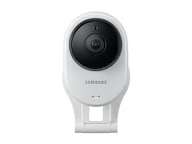
Why Connecting to Your Home Network Matters
Before diving into the steps, it’s important to understand why connecting your camera properly makes such a big difference. When you learn how to connect Samsung Smart Cameras to your home network, you unlock features such as:
Remote access: Monitor your home from your phone, no matter where you are.
Cloud storage integration: Save video footage directly to online storage.
Smart alerts: Get real-time notifications when motion or sound is detected.
Seamless updates: Ensure your camera receives security patches and performance improvements automatically.
Without a proper connection, these features won’t work as intended, leaving your device underutilized.
Step-by-Step Guide: How to Connect Samsung Smart Cameras to Your Home Network
Prepare Your Camera and Router
Before starting, make sure your camera is fully powered and your Wi-Fi network is stable. The connection process often fails if the internet is weak or unstable.
Install the Samsung Smart Camera App
Download the official Samsung Smart Camera app on your smartphone. This app acts as the control hub and is essential for learning how to connect Samsung Smart Cameras to your home network.
Follow the In-App Setup Instructions
Open the app, sign in with your Samsung account, and tap “Add Device.” The app will guide you step by step. Usually, you’ll scan a QR code on the camera or manually input your Wi-Fi credentials.
Connect to Wi-Fi
When prompted, select your home Wi-Fi network and enter the password. Make sure you’re connecting to a 2.4 GHz band if your router offers both 2.4 GHz and 5 GHz. Many smart cameras still rely on the 2.4 GHz frequency for better range.
Test the Connection
Once connected, check the live feed from the app. If the video is streaming smoothly, congratulations, you’ve successfully learned how to connect Samsung Smart Cameras to your home network.
Common Issues and Fixes
Even when following the right steps, some users face problems. Here are common issues and how to fix them:
Camera not detecting Wi-Fi: Restart both your router and the camera.
Weak signal: Move the camera closer to the router or use a Wi-Fi extender.
App not pairing: Uninstall and reinstall the Samsung Smart Camera app, then retry.
Connection drops frequently: Update your router firmware and ensure the camera has the latest software.
These quick fixes can save you hours of frustration.
Tips to Keep Your Connection Strong
Learning how to connect Samsung Smart Cameras to your home network is just the beginning. To keep things smooth, follow these tips:
Place your router in a central location for stronger coverage.
Avoid too many devices crowding your Wi-Fi.
Regularly update both your app and the camera firmware.
Consider upgrading your internet plan if your camera streams lag during peak hours.
Conclusion
Figuring out how to connect Samsung Smart Cameras to your home network doesn’t have to be overwhelming. With the right preparation, the Samsung Smart Camera app, and a steady Wi-Fi signal, the entire setup can be completed in just a few minutes.
The real reward comes afterward, the ability to monitor your home anytime, get instant alerts, and enjoy peace of mind whether you’re at work, traveling, or simply relaxing in another room. With the right connection, your Samsung Smart Camera becomes more than just a gadget, it becomes a reliable part of your home security system.
When you purchase through links on our site, we may earn an affiliate commission which helps in keeping this website running. Here’s how it works.
Use the Code ref-09ngex to get 5% off from Samsung

About the Author: Ikhide Uanseoje
Welcome to SamUniverse! My name is Ikhide Uanseoje, the mind behind this website dedicated to everything Samsung. As a passionate tech enthusiast and lover, I specialize in delivering the latest news, in-depth reviews, and helpful guides about Samsung products, from smartphones and wearables to laptops and accessories.
Born and raised in Nigeria, I’ve always had a fascination with cutting-edge technology and how it shapes our lives. This passion led me to create SamUniverse, a platform where Samsung fans and tech lovers can explore innovations, tips, and updates that truly matter.
When I’m not writing, you’ll find me exploring new tech trends, brainstorming ideas for future posts, or working on ways to make this website your go-to resource for all things Samsung.
Stay tuned to SamUniverse as we uncover the best Samsung has to offer!