How to Connect Samsung Smart Devices to Google Home

Smart homes are becoming more common, and Samsung has made a big impact in this space with its wide range of smart TVs, appliances, and SmartThings compatible devices. At the same time, Google Home (powered by Google Assistant) has become a go-to hub for voice control and home automation. If you own Samsung products and want the convenience of controlling them with Google, knowing how to connect Samsung smart devices to Google Home can make your life a lot easier than ever.
This guide will walk you through the setup process, explain why integration is useful, and highlight tips for getting the most out of your connected ecosystem.
Why Connect Samsung Devices to Google Home?
Before diving into the steps, it’s worth understanding the benefits. When you know how to connect Samsung smart devices to Google Home, you unlock:
Voice control: This can adjust your Samsung TV, lights, or appliances with simple voice commands.
Automation: Create routines that trigger multiple actions at once, like turning off lights and locking the door when you say “Goodnight.”
Cross-brand compatibility: Google Home lets Samsung devices work alongside products from Philips Hue, Nest, and other brands in one ecosystem.
Remote access: Control your Samsung smart devices even when you’re not at home using the Google Home app.
Step 1: Set Up Your Samsung SmartThings Account
The first step in learning how to connect Samsung smart devices to Google Home is to make sure your Samsung device is already linked to a SmartThings account. SmartThings acts as the bridge between Samsung and Google Home.
- Download the SmartThings app on your phone.
- Sign in with your Samsung account.
- Add your Samsung devices (TV, fridge, air conditioner, or any other supported smart gadget).
- Test them in the SmartThings app to ensure they’re working properly.
Step 2: Open the Google Home App
Once your Samsung devices are ready in SmartThings, open the Google Home app. This is where you’ll actually complete the linking process.
- Tap the “+” icon to add a new device.
- Choose “Set up device” and then select “Works with Google.”
- Search for SmartThings in the list of available services.
This is the key step in figuring out how to connect Samsung smart devices to Google Home successfully.
Step 3: Link SmartThings to Google Home
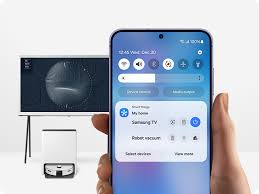
After selecting SmartThings, you’ll be asked to log in with your Samsung account credentials. Once logged in, you can grant Google Home access to control your Samsung devices.
Select the devices you want to appear in Google Home.
Organize them into rooms for easier control.
Test a command like “Hey Google, turn on the living room TV” to check if everything is working.
Now you officially know how to connect Samsung smart devices to Google Home, and your setup should be ready to use.
Step 4: Customize Routines and Commands
The real magic happens when you create routines. By setting up custom actions in Google Home, you can personalize how your Samsung devices work together.
For example:
“Hey Google, Movie Time” can dim your Samsung smart lights and turn on your TV.
“Hey Google, Good Morning” can power on your Samsung coffee machine and read your daily schedule.
These automations show why learning how to connect Samsung smart devices to Google Home adds convenience to daily life.
Common Issues and Fixes
Sometimes things don’t go smoothly when setting up. Here are a few troubleshooting tips:
Device not appearing: Check if your Samsung device is compatible with SmartThings. Not all models work.
Connection lost: Re-link SmartThings to Google Home if devices stop responding.
Wi-Fi issues: Ensure both Google Home and Samsung devices are connected to the same network.
Outdated apps: Update SmartThings and Google Home apps regularly for bug fixes.
With these fixes, you won’t feel stuck when dealing with how to connect Samsung smart devices to Google Home.
Conclusion
Knowing how to connect Samsung smart devices to Google Home is one of the best ways to simplify and unify your smart home experience. With SmartThings acting as the bridge, you can easily control Samsung TVs, appliances, and other gadgets with just your voice. Once connected, routines, automations, and cross-device compatibility make your home smarter and more efficient.
Whether you’re just starting your smart home journey or expanding your current setup, this integration ensures your Samsung devices work seamlessly with the rest of your Google-powered ecosystem.
When you purchase through links on our site, we may earn an affiliate commission which helps in keeping this website running. Here’s how it works.
Use the Code ref-09ngex to get 5% off from Samsung

About the Author: Ikhide Uanseoje
Welcome to SamUniverse! My name is Ikhide Uanseoje, the mind behind this website dedicated to everything Samsung. As a passionate tech enthusiast and lover, I specialize in delivering the latest news, in-depth reviews, and helpful guides about Samsung products, from smartphones and wearables to laptops and accessories.
Born and raised in Nigeria, I’ve always had a fascination with cutting-edge technology and how it shapes our lives. This passion led me to create SamUniverse, a platform where Samsung fans and tech lovers can explore innovations, tips, and updates that truly matter.
When I’m not writing, you’ll find me exploring new tech trends, brainstorming ideas for future posts, or working on ways to make this website your go-to resource for all things Samsung.
Stay tuned to SamUniverse as we uncover the best Samsung has to offer!