How to Customize the Rotating Bezel for Faster Navigation on the Galaxy Watch 8 Classic

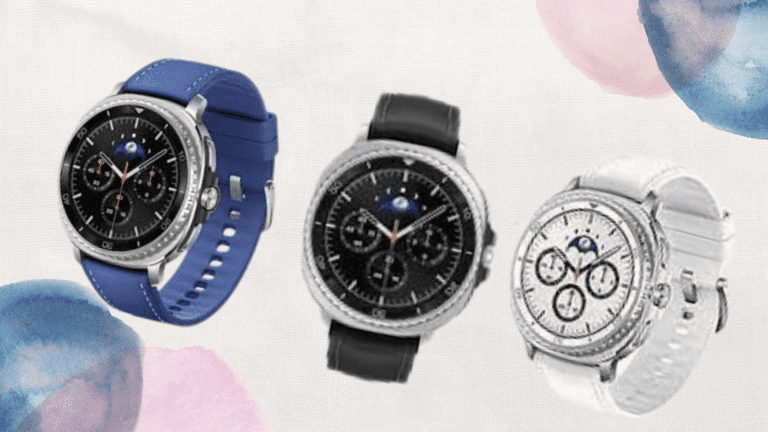
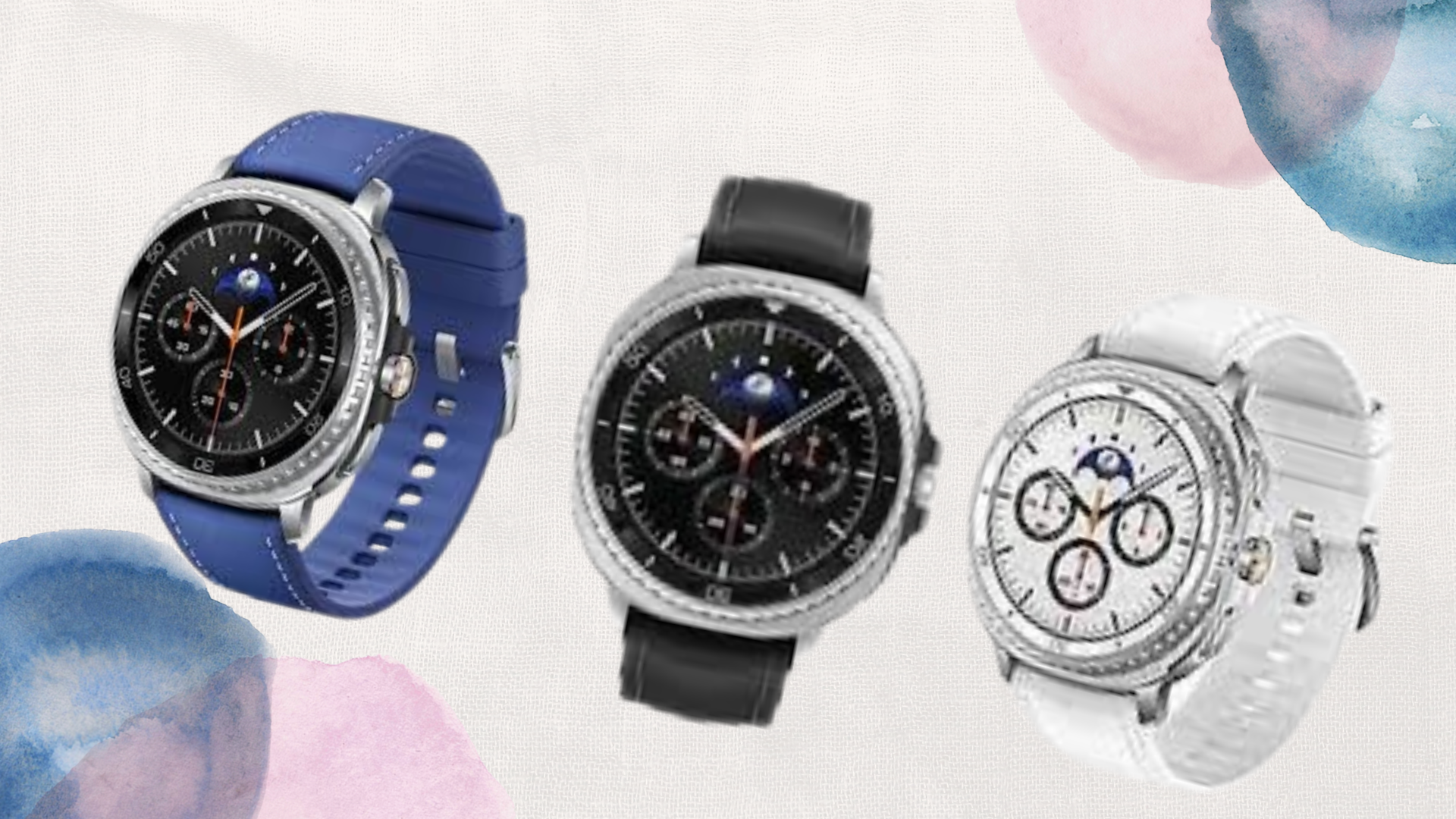
The Galaxy Watch 8 Classic is designed for both style and functionality, making it’s wearer look classy, and its rotating bezel is one of the standout features that makes interacting with the watch intuitive and satisfying. By customizing the bezel to your taste, you can navigate faster, access apps more efficiently, and enjoy a smoother overall experience.
Why Customize the Rotating Bezel?
The rotating bezel isn’t just a design element; it’s a powerful tool that simplifies your interactions with the Galaxy watch. Customizing it allows you to scroll through your notifications, apps, and widgets without touching the screen, which is particularly useful when your hands are occupied or your fingers or screen are wet. Adjusting the bezel can speed up navigation, reduce the number of taps needed to reach your favorite apps, and create a more personalized experience tailored to your preferences.
Accessing the Settings
To start customizing your bezel, first access the settings on your Galaxy Watch 8 Classic. Wake the watch by pressing the home button, then either swipe down to open the Quick Settings menu or tap the Settings app directly. Inside the settings, scroll to Advanced Features, which is where you will find all the options for the rotating bezel.
Adjusting Bezel Sensitivity
The sensitivity of the bezel determines how responsive it is to rotations. A higher sensitivity means fewer rotations are required to scroll through menus, notifications, or widgets. In the Advanced Features section, you can select the sensitivity level that suits you best. If you frequently scroll through long lists or notifications, a higher sensitivity setting can make navigation faster, while a lower setting may feel more controlled and precise. Finding the right sensitivity ensures your bezel performs exactly the way you want.
Customizing Bezel Actions
Beyond sensitivity, you can also customize what the bezel does in different contexts. For example, you can scroll through apps, flip between widgets, adjust volume, or zoom in and out on images and maps. This customization allows you to tailor the bezel’s function to your daily usage, making each rotation meaningful and practical. Assigning specific actions to the bezel reduces unnecessary taps on the screen and streamlines your interactions with the watch.
Enhancing Haptic Feedback
Haptic feedback adds a subtle vibration each time you rotate the bezel, helping you feel every movement and ensuring more precise navigation. This feature is especially helpful when scrolling through menus or making selections quickly. By enabling and adjusting haptic feedback intensity, you can make each rotation feel satisfying and controlled, improving both accuracy and speed.
Fine Tuning Your Setup
Once you’ve adjusted the sensitivity, actions, and haptic feedback, spend some time testing your settings in everyday use. Scroll through your favorite apps, check notifications, and interact with widgets to see if the bezel behaves exactly how you want. Minor adjustments may be needed to achieve the perfect balance between speed and control. With a little fine-tuning, your Galaxy Watch 8 Classic becomes even more intuitive and efficient.
Conclusion
Customizing the rotating bezel on the Galaxy Watch 8 Classic enhances your navigation, making daily interactions faster and smoother. Adjusting sensitivity, assigning bezel actions, and enabling haptic feedback allows the watch to respond to your personal preferences, turning a simple rotation into a seamless experience. Spend some time exploring these settings, and you’ll notice how much easier and more enjoyable it becomes to navigate your smartwatch.
Quick Question: Did you know the bezel can also control media playback while you exercise? Using it this way can make your workouts much more convenient.
When you purchase through links on our site, we may earn an affiliate commission which helps in keeping this website running. Here’s how it works.
Use the Code ref-09ngex to get 5% off from Samsung

About the Author: Ikhide Uanseoje
Welcome to SamUniverse! My name is Ikhide Uanseoje, the mind behind this website dedicated to everything Samsung. As a passionate tech enthusiast and lover, I specialize in delivering the latest news, in-depth reviews, and helpful guides about Samsung products, from smartphones and wearables to laptops and accessories.
Born and raised in Nigeria, I’ve always had a fascination with cutting-edge technology and how it shapes our lives. This passion led me to create SamUniverse, a platform where Samsung fans and tech lovers can explore innovations, tips, and updates that truly matter.
When I’m not writing, you’ll find me exploring new tech trends, brainstorming ideas for future posts, or working on ways to make this website your go-to resource for all things Samsung.
Stay tuned to SamUniverse as we uncover the best Samsung has to offer!