How to Enable Adaptive Battery Properly on Android Smartphones

Battery life is one of the most important aspects of using a smartphone. No matter how powerful your device is, it’s only as good as the charge it holds throughout the day. That’s where Android’s Adaptive Battery feature comes in. If you’ve ever wondered how to enable Adaptive Battery properly on Android smartphones, this guide will walk you through the process step by step. Not only will you learn how to activate it, but also how to make the most of it for longer-lasting performance.
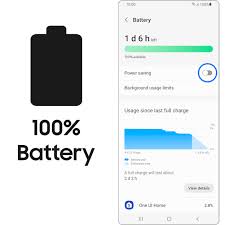
What Is Adaptive Battery?
Before we get into how to enable Adaptive Battery properly on Android smartphones, let’s first understand what it actually does. Adaptive Battery is a feature introduced in Android 9 Pie and has continued to improve with every Android version since.
It uses machine learning to study how you use your apps. By analyzing which apps you use frequently and which ones you rarely touch, Adaptive Battery limits background activity for apps that don’t need to constantly run. The result? A smarter battery management system that helps your phone last longer without you lifting a finger.
Why You Should Use Adaptive Battery
Turning on Adaptive Battery is more than just checking a box in your settings. Once you know how to enable Adaptive Battery properly on Android smartphones, you’ll see benefits like:
Longer daily usage: Fewer background apps drain your power, leaving more charge for the apps you actually use.
Smarter app management: Apps you rarely open won’t hog resources unnecessarily.
Better performance: Less strain on your phone’s processor, since background processes are reduced.
Seamless experience: You don’t need to manually stop apps every time—you just let the system do it for you.
How to Enable Adaptive Battery Properly on Android Smartphones
Here’s the exact process if you want to know how to enable Adaptive Battery properly on Android smartphones:
- Open Settings: Swipe down from the top of your screen and tap the gear icon, or find “Settings” in your app drawer.
- Go to Battery or Device Care: Depending on your phone model, you may see “Battery,” “Battery & Performance,” or “Device Care.”
- Find Adaptive Battery: Scroll down until you see “Adaptive Battery” or “Battery Manager.”
- Turn it On: Toggle the switch to enable it. Your phone will now begin learning your app usage patterns.
It’s as simple as that—but to truly use it correctly, you’ll want to combine it with some extra tips.
Best Practices for Using Adaptive Battery
Just flipping the switch is only part of knowing how to enable Adaptive Battery properly on Android smartphones. Here are a few best practices to make sure it works as intended:
Give it time: The feature learns over weeks of usage. Don’t expect instant improvements on day one.
Avoid force-closing apps: Constantly shutting apps yourself can interfere with Adaptive Battery’s learning.
Keep your phone updated: System updates often bring optimizations for battery management.
Pair with Adaptive Brightness: Using both together can maximize your battery savings.
Check background restrictions manually: If you notice certain apps draining more power, you can still restrict them manually in settings.
Common Misconceptions
Some users think turning on this feature will instantly double their battery life. That’s not how it works. The key to how to enable Adaptive Battery properly on Android smartphones is patience, it’s designed to optimize over time. Another misconception is that it slows down apps, but in reality, it only affects apps you don’t use often. Your daily-use apps remain fast and responsive.
Conclusion
Learning how to enable Adaptive Battery on your smartphones is a simple but powerful way to get the most out of your device. It won’t replace good charging habits or instantly solve every battery issue, but it does create smarter efficiency in the background.
If you combine it with features like Adaptive Brightness, keep your software updated, and allow it time to learn your habits, you’ll notice significant improvements in battery performance. In today’s world, where we rely on our phones more than ever, having a feature like Adaptive Battery enabled and optimized can make all the difference.
When you purchase through links on our site, we may earn an affiliate commission which helps in keeping this website running. Here’s how it works.
Use the Code ref-09ngex to get 5% off from Samsung

About the Author: Ikhide Uanseoje
Welcome to SamUniverse! My name is Ikhide Uanseoje, the mind behind this website dedicated to everything Samsung. As a passionate tech enthusiast and lover, I specialize in delivering the latest news, in-depth reviews, and helpful guides about Samsung products, from smartphones and wearables to laptops and accessories.
Born and raised in Nigeria, I’ve always had a fascination with cutting-edge technology and how it shapes our lives. This passion led me to create SamUniverse, a platform where Samsung fans and tech lovers can explore innovations, tips, and updates that truly matter.
When I’m not writing, you’ll find me exploring new tech trends, brainstorming ideas for future posts, or working on ways to make this website your go-to resource for all things Samsung.
Stay tuned to SamUniverse as we uncover the best Samsung has to offer!