How to Enable Developer Mode on Samsung Galaxy Phones

Samsung Galaxy phones are packed with features that most people use daily, example of such is simple things like calling, messaging, social apps, and photography. But beneath the surface, there are some hidden tools designed specifically for advanced users, testers, and developers. These hidden settings are not accessible by default, but they can be unlocked through something called Developer Mode. Learning how to enable Developer Mode on Your Samsung Galaxy Phones will give you access to a whole new level of control. From USB debugging to animation speed tweaks and even testing apps, Developer Mode is where the real customization power lies. In this article, we’ll walk you through why Developer Mode exists, the benefits of enabling it, and the exact steps to turn it on safely.

Why Enable Developer Mode?
Before we dive into how to enable Developer Mode on Samsung Galaxy Phones, let’s talk about why you’d even want to use it, I mean why should you bother yourself with this. While most users never touch these settings, tech enthusiasts and developers like myself rely on them for: USB Debugging: Needed for connecting your phone to a computer for app testing, rooting, or flashing software. Performance Tweaks: Adjusting animation scales makes your phone feel faster. Testing Features: Developers use it to simulate different environments. App Troubleshooting: Helpful when apps behave differently on certain devices.
Basically, it unlocks multiple advanced control for users who want more than the standard Samsung experience.
Step-by-Step: How to Enable Developer Mode on Samsung Galaxy Phones
Now let’s go straight into the process. If you’ve never done this before, don’t worry, it’s simple and reversible. Follow these steps:
- Open Settings Go to the Settings app on your Samsung Galaxy device. This is where all system level options are located.
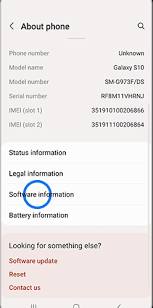
- Scroll to About Phone Navigate down and tap on About Phone. This section contains device details like your model number and software version.
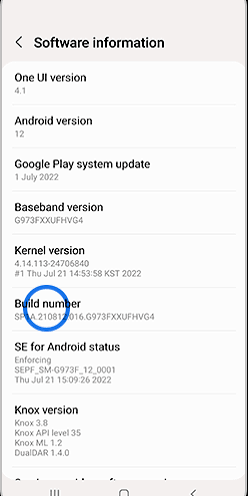
- Tap Software Information Inside About Phone, select Software Information. Here, you’ll see details like Android version and build number.
- Find Build Number Locate the Build Number option. This is the key to unlocking Developer Mode.
- Tap Build Number Repeatedly Tap the Build Number seven times in quick succession. A pop-up will appear asking for your PIN, password, or fingerprint (depending on your lock method).
- Enter Your PIN/Password Once verified, you’ll see a message that says “Developer mode has been enabled”.
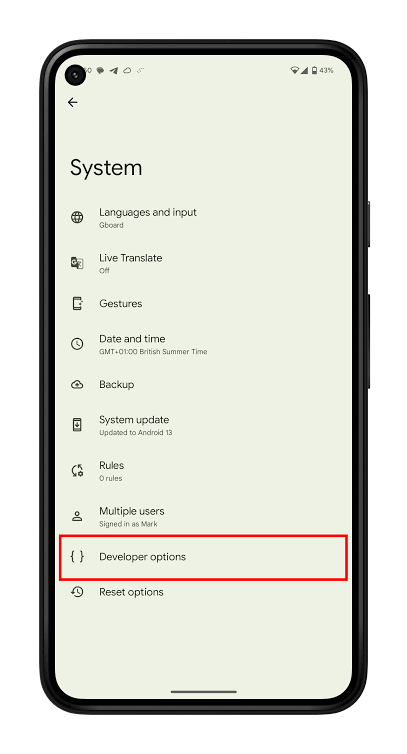
- Access Developer Options Go back to Settings. Scroll down, and you’ll now see a new section called Developer Options. This is where all the advanced tools live.
And that’s it, you’ve successfully learned how to enable Developer Mode on Samsung Galaxy Phones.
What Can You Do in Developer Mode?
Once enabled, here are some of the most useful options inside Developer Mode: USB Debugging: This feature is a must have if you plan to connect your phone to a computer for advanced tasks. Animation Scale Adjustments: This helps by speeding up or down animations to change how your phone feels. Limit Background Processes: Helpful for improving performance and battery life. Force GPU Rendering: Can improve app graphics performance in certain cases. Mock Location App: Useful for developers who need to test location-based apps.
While these settings can improve your experience, you should be cautious because changing the wrong options could affect how your phone runs like it did to me a while back.
Precautions Before Enabling Developer Mode
Now, you understand how to enable Developer Mode on Galaxy device, but this is only part of the journey. It’s also important to use it responsibly:
- Avoid Random Tweaks: Don’t just change settings you don’t understand because you see it there.
- Security Risks: Enabling USB debugging can expose your phone to security issues if left on while connected to unknown computers.
- Battery Impact: You should know that some developer options may drain your battery faster.
- Not for Everyone: If you’re not testing apps or making tweaks, you might not need to use it daily.
Conclusion
Now you know exactly how to enable Developer Mode on Samsung Galaxy Phones, along with the benefits, the potential risks, and key features. It’s a powerful tool hidden inside your device that gives you access to advanced customization and testing options. Whether you’re a developer testing apps, a tech enthusiast tweaking animations, or just curious about what your phone can really do, Developer Mode opens the door to a deeper Samsung experience. Just remember that you have to use it wisely, unlocking power is one thing, but with great power comes great responsibility.
When you purchase through links on our site, we may earn an affiliate commission which helps in keeping this website running. Here’s how it works.
Use the Code ref-09ngex to get 5% off from Samsung

About the Author: Ikhide Uanseoje
Welcome to SamUniverse! My name is Ikhide Uanseoje, the mind behind this website dedicated to everything Samsung. As a passionate tech enthusiast and lover, I specialize in delivering the latest news, in-depth reviews, and helpful guides about Samsung products, from smartphones and wearables to laptops and accessories.
Born and raised in Nigeria, I’ve always had a fascination with cutting-edge technology and how it shapes our lives. This passion led me to create SamUniverse, a platform where Samsung fans and tech lovers can explore innovations, tips, and updates that truly matter.
When I’m not writing, you’ll find me exploring new tech trends, brainstorming ideas for future posts, or working on ways to make this website your go-to resource for all things Samsung.
Stay tuned to SamUniverse as we uncover the best Samsung has to offer!