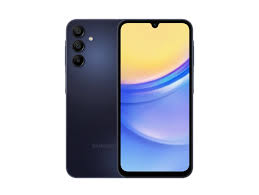
How To Keep Your Samsung Phone Running Like New

Samsung smartphones are designed to deliver powerful performance, smooth navigation, and cutting-edge features. But just like any other device, they can slow down over time if not properly maintained. From background apps draining resources to storage filling up, all these small issues can gradually affect your phone’s speed and battery life.
So, what’s the good news? Well, the good news is that with just a few smart habits and built in Samsung tools, you can keep your Galaxy device feeling as fast and responsive as the day you unboxed it. In this guide, we’ll cover essential tips to maintain peak performance and ensure your Samsung phone runs like new for years to come.
Keep Your Software Updated

Samsung frequently releases One UI and security updates to improve performance, fix bugs, and introduce new features. Skipping these updates can leave your phone vulnerable to security risks and can cause minor glitches that will slow it down over time.
How to check for updates:
- Open Settings.
- Tap Software update.
- Select Download and install.
For convenience, enable Auto download over Wi-Fi so your phone always stays up to date without manual checks.
Tip: Updates not only improve speed but also optimize battery usage and enhance overall device stability.
Clear Cache and Junk Files Regularly
Over time, apps store temporary files (cache) to load faster. While helpful at first, excessive cached data can slow down your Samsung phone and even cause apps to misbehave. Occasionally clearing cache and junk files will keep your device running smoothly.
How to clear cache and optimize performance using Device Care:
- Open Settings → Device care (or Battery and device care).
- Tap Optimize now to free up memory and improve speed.
- Go to Storage to view and delete unused or large files.
To clear cache for individual apps:
- Go to Settings → Apps.
- Select the app.
- Tap Storage → Clear cache.
Tip: Clearing cache doesn’t delete your personal data — it only removes temporary files.
Manage Background Apps
One of the important thing to do to prevent a slow phone is to manage your background apps. Some apps continue to run even when you’re not using them, quietly consuming RAM, draining the battery, and slowing down your Samsung phone. Managing these background apps helps free up system resources and keeps performance smooth.
How to manage background apps:
- Go to Settings → Battery and device care → Battery.
- Tap Background usage limits.
- Restrict apps you rarely use.
Enable Adaptive Battery:
In Settings → Battery, turn on Adaptive battery.
This feature uses AI to learn your usage habits and limits power to apps you don’t use often.
Tip: Closing unused apps from the Recent Apps screen also helps free up memory instantly.
Avoid Overloading Your Storage
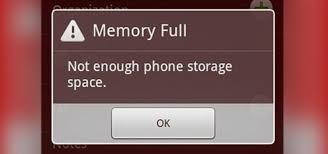
When your Samsung phone’s storage is almost full, it can slow down significantly. So, keeping at least 15–20% of your storage space free ensures smoother performance and faster app loading times.
Tips to free up space:
Delete unused apps: Go to Settings → Apps and uninstall apps you no longer need.
Move media to the cloud: Use Samsung Cloud, Google Photos, or OneDrive to back up and remove photos/videos from local storage.
Transfer files to an SD card: If your device supports it, store large files, videos, and offline downloads on an SD card.
Clean large files manually: Open the My Files app, check Large files, and delete what you don’t need.
Tip: Set Google Photos to “High Quality” or “Storage Saver” mode to back up unlimited photos without eating into your phone’s memory.
Restart Your Phone Weekly
Restarting your Samsung phone is a simple but effective way to keep it running smoothly. A reboot clears temporary files, closes unused background processes, and refreshes the system, this often fixes minor slowdowns.
How to restart your phone:
- Press and hold the Power button (or Side key).
- Tap Restart.
- Confirm if prompted.
Enable Auto Restart:
Go to Settings → Battery and device care → Auto restart at set times.
Choose a convenient time, like early morning, so it doesn’t interrupt your usage.
Tip: Restarting once a week is enough to keep your device refreshed without affecting uptime.
Keep Your Phone Physically Clean
A clean Samsung phone isn’t just about looks, getting dust and dirt in the wrong places can cause charging issues, muffled audio, and overheating. Regular cleaning keeps your device in top condition and helps it perform better.
Safe cleaning tips:
Wipe with a microfiber cloth: Removes fingerprints and smudges without scratching the screen.
Clean charging port and speakers: Use a soft, dry brush or a can of compressed air to gently remove dust.
Avoid harsh chemicals: Strong cleaners can damage the screen coating and body finish.
Clean case and screen protector: Wash your case with mild soap and water, and replace damaged screen protectors.
Tip: Always power off your phone before cleaning, especially when working near ports or openings.
FAQ
Q: Can I speed up my Samsung phone if it’s already slow?
A: Yes. You can improve performance by clearing the cache, freeing up storage, managing background apps, and installing the latest software updates. If your phone is still sluggish after these steps, consider doing a factory reset, just make sure to back up your data first.
Conclusion
Keeping your Samsung phone running like new doesn’t require complicated steps, just consistent care. Regularly update your software, clear cache, manage storage, and control background apps to maintain smooth performance. Don’t forget to restart your phone weekly, protect your battery health, and keep it physically clean for the best results.
By following these simple maintenance tips, your Samsung device can stay fast, responsive, and reliable for years, giving you the same smooth experience you enjoyed the day you first unboxed it.
When you purchase through links on our site, we may earn an affiliate commission which helps in keeping this website running. Here’s how it works.
Use the Code ref-09ngex to get 5% off from Samsung

About the Author: Ikhide Uanseoje
Welcome to SamUniverse! My name is Ikhide Uanseoje, the mind behind this website dedicated to everything Samsung. As a passionate tech enthusiast and lover, I specialize in delivering the latest news, in-depth reviews, and helpful guides about Samsung products, from smartphones and wearables to laptops and accessories.
Born and raised in Nigeria, I’ve always had a fascination with cutting-edge technology and how it shapes our lives. This passion led me to create SamUniverse, a platform where Samsung fans and tech lovers can explore innovations, tips, and updates that truly matter.
When I’m not writing, you’ll find me exploring new tech trends, brainstorming ideas for future posts, or working on ways to make this website your go-to resource for all things Samsung.
Stay tuned to SamUniverse as we uncover the best Samsung has to offer!