How to Set Up Samsung Cloud Backups

Has something happened to you that made you lose your data on your phone. Whether it’s your photos, videos, documents or anything else, I’m sure you were angry or frustrated. But now, even if you lose your device where all your data were stored, you can still get them back if you backed it up with Samsung Cloud
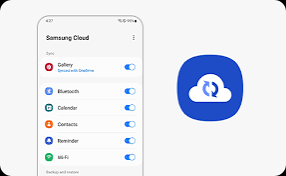
Samsung Cloud is a built-in backup and restore service that is available on most Samsung Galaxy smartphones and tablets. With just a few taps, you can automatically save your important data on the cloud and then restore it later when you switch devices, did a factory reset or if it was stolen.
In this guide, I’ll walk you through everything you need to know about setting up Samsung Cloud backups, from preparing your device to choosing what gets backed up and how to restore it when needed. So whether you’re a new Samsung user or just haven’t set up your cloud yet, you’ll find this step-by-step breakdown simple and useful.
Accessing Your Samsung Cloud
Before you can start backing up anything, you’ll need to access Samsung Cloud on your Galaxy device. It’s built right into your phone’s settings, so you won’t need to download any separate apps.
You can follow these steps to find the Samsung Cloud on your device.
- Open Settings app.
- Navigate to Accounts and Backup.
- Tap On “Samsung Cloud”
- Sign In (If asked to).
Tip: If you can’t find Samsung Cloud, make sure your device software is up to date. On newer Galaxy phones, Samsung Cloud features may be integrated within Smart Switch or work alongside OneDrive for photo backups.
How To Back Up Your Data: Manual And Automatic Option
Samsung Cloud gives you two ways to backup your data. There’s the Manual Backup which gives you more control on what to backup, and there’s the Automatic Backup which saves time. Knowing how to use both will helps keep your important data safe at all times.
Manual Backup: Manual backups are great when you’re about to reset your phone, switch to a new device, or just want extra peace of mind.
Here’s how to perform Manual Backup:
- Go to Settings > Accounts and Backup > Samsung Cloud
- Tap “Back up data”
- Select the data types you want to back up (e.g., Messages, Contacts, Settings)
- Tap “Back up now” at the bottom of the screen.
- Wait for the backup to complete—this may take a few minutes depending on how much data you’re saving.
Once you’re done, you’ll get a confirmation and see the last backup date displayed under each data category.
Automatic Backup: Automatic Backup are great way to backup your data, it does it background without you having to lift a finger. Samsung Cloud will back up your selected data once every 24 hours only when your phone meets some conditions: Connected to Wi-Fi, Plugged in and charging, Screen is off for at least an hour.
To turn on Automatic Backups:
- Go to Settings > Accounts and Backup > Samsung Cloud
- Tap “Back up data”
- Ensure your preferred data types are selected.
- Enable the “Auto back up while charging” toggle (it may appear under “More options” or the three-dot menu).
Once it’s enabled, your phone will automatically save your selected data daily as long as those three backup conditions are met.
Restoring Data From Samsung Cloud
Now you know how to backup your data on Samsung cloud, but what of restoring your data when you got a new device, you did a factory reset or accidentally deleted some important information on your device. Well restoring your data from Samsung Cloud is quite simple to do and you can get it back with just a few taps.
Restoring Your Data
- Connect to Wi-Fi and sign in with your Samsung account.
- You’ll be prompted to restore data from Samsung Cloud
- Select the device and data types you want to restore.
- Tap “Restore”, and let the process complete.
- Once finished, your apps, settings, and other content will begin appearing as they were.
Note: You should note that restoring your data will not delete your current data unless you allow it to.
Managing Your Cloud Storage Space
It’s important for you to know that your Samsung cloud storage has a limit. Samsung will give you 5GB per Samsung account. If you’re backing up multiple types of data or have several Galaxy devices, that space can fill up fast. Here’s how to check your storage, free up space, and stay organized.
How to check your available space
- Go to Settings > Accounts and Backup > Samsung Cloud
- At the top, you’ll see how much cloud storage you’ve used and what’s still available
- Tap on the storage bar to view a breakdown of what’s taking up space (e.g., Messages, Notes, App Data).
Freeing Up Your Cloud Storage
If you’ve checked your cloud storage and see that you don’t have enough space, you can free it up by:
Delete Old Backup:
Go to Samsung Cloud > Restore Data, then choose an outdated device, and delete the backup.
Remove unused data types from backup: Disable the things you don’t really need (like Samsung Internet or Clock settings) from your backup list.
Manually delete synced files or app data: Under Samsung Cloud > Synced apps, you can manage or stop syncing for apps like Samsung Notes or Calendar.
Conclusion
Backup up your data on Samsung isn’t hard to do. With Samsung Cloud, you can keep your contacts, messages, photos, videos, settings, and more safely stored without lifting a finger once it’s set up.
By following the steps in this guide, you’ve learned how to access Samsung Cloud, choose what to back up, perform manual and automatic backups, restore your data when needed, and manage your storage space efficiently.
When you purchase through links on our site, we may earn an affiliate commission which helps in keeping this website running. Here’s how it works.
Use the Code ref-09ngex to get 5% off from Samsung

About the Author: Ikhide Uanseoje
Welcome to SamUniverse! My name is Ikhide Uanseoje, the mind behind this website dedicated to everything Samsung. As a passionate tech enthusiast and lover, I specialize in delivering the latest news, in-depth reviews, and helpful guides about Samsung products, from smartphones and wearables to laptops and accessories.
Born and raised in Nigeria, I’ve always had a fascination with cutting-edge technology and how it shapes our lives. This passion led me to create SamUniverse, a platform where Samsung fans and tech lovers can explore innovations, tips, and updates that truly matter.
When I’m not writing, you’ll find me exploring new tech trends, brainstorming ideas for future posts, or working on ways to make this website your go-to resource for all things Samsung.
Stay tuned to SamUniverse as we uncover the best Samsung has to offer!