How to Set Up Samsung DeX for Professional Use

Samsung DeX has become one of the most powerful tools for most people nowadays, it’s a great tool for people who want to turn their smartphones into a workstation. Instead of carrying a laptop everywhere you go, the Samsung DeX allows you to use your Samsung device as a desktop like experience on a bigger screen. Whether you’re working on presentations, editing documents, or multitasking across apps, knowing how to set up Samsung DeX for professional use can significantly boost your productivity.
In this guide, we’ll walk through the complete process of setting up DeX, the devices and accessories you’ll need, and how to customize it for maximum efficiency in your daily workflow.
What Is Samsung DeX and Why Professionals Use It
Samsung DeX, short for “Desktop Experience,” is a feature available on many Galaxy devices. It transforms your phone into a PC-like environment when connected to a monitor, TV, or computer.
For professionals, the benefits are clear:
Access files, emails, and apps on a larger screen.
Run multiple windows side by side.
Use a keyboard and mouse for faster input.
Carry all your work data in one device.
But to unlock its full potential, you need to understand how to set up Samsung DeX for professional use properly.
Devices and Accessories You Need
Before learning how to set up Samsung DeX for professional use, you’ll need to make sure you have the right equipment:
- Compatible Device – Most flagship Galaxy S, Note, and Z Fold devices support DeX.
- Monitor or TV – Any HDMI-enabled display will work.
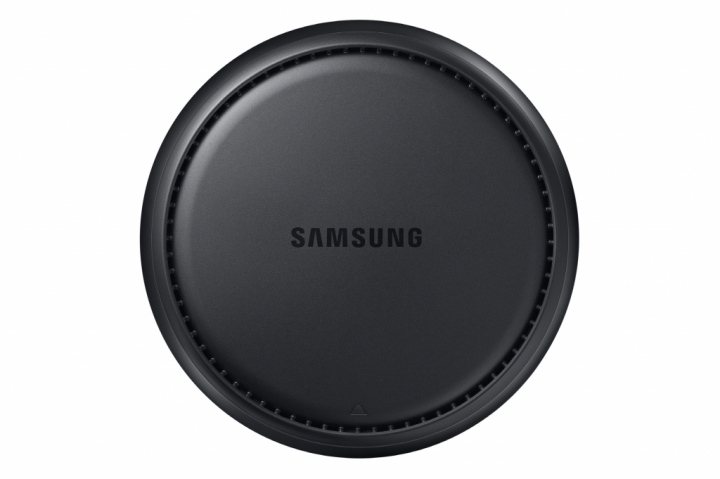
- USB-C to HDMI Cable or DeX Station – For wired connections. Wireless DeX also works on smart TVs.
- Keyboard and Mouse – For a true desktop-like experience. Bluetooth or USB options both work.
- Optional Docking Station – Some professionals prefer docking for extra ports and stability.
Step-by-Step: How to Set Up Samsung DeX for Professional Use
Wired Setup
Connect your phone to a monitor using a USB-C to HDMI cable or DeX Station.
Unlock your phone and select the Samsung DeX option from the notification bar.
Your monitor will display a desktop-like interface, and your phone can now act as a touchpad if you don’t have a mouse.
Wireless Setup
Ensure your smart TV or monitor supports wireless display.
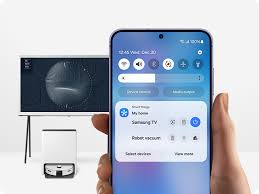
Swipe down on your phone and select DeX from the quick settings menu.
Choose your display and start projecting.
This is one of the easiest ways to learn how to set up Samsung DeX for professional use, especially for presentations or quick work sessions.
Customizing DeX for Work
Once you know how to set up Samsung DeX for professional use, the next step is tailoring it to your workflow:
App Layouts: Pin frequently used apps like Microsoft Office, Google Drive, or Slack to the taskbar.
Multi-Window Mode: Open multiple apps at once, just like on a computer.
Keyboard Shortcuts: Use shortcuts for faster navigation.
External Storage: Connect USB drives or SSDs through the docking station for file transfers.
Screen Mirroring vs. Desktop Mode: Decide whether you want a mirrored display or the full DeX desktop view.
Professional Use Cases
Understanding how to set up Samsung DeX for professional use isn’t just about connecting hardware — it’s about applying it effectively in your field:
Business Presentations: Carry just your phone and connect it to a projector or display.
Remote Work: Combine DeX with video conferencing apps for a portable workstation.
Document Editing: Use Microsoft Office or Google Workspace seamlessly.
Creative Work: Pair it with apps for drawing, photo editing, or light design tasks.
Travel-Friendly Workstation: Professionals on the go can skip laptops altogether.
Troubleshooting and Tips
Even after learning how to set up Samsung DeX for professional use, some professionals run into common issues. Here’s how to fix them:
Laggy Connection (Wireless): Switch to a wired setup for smoother performance.
App Compatibility: Not all apps scale perfectly; use Samsung-approved or desktop-optimized apps.
Storage Issues: Keep cloud backups via OneDrive, Google Drive, or Samsung Cloud.
Battery Drain: Use a dock or charger during long sessions.
Conclusion
Knowing how to set up Samsung DeX for professional use will come in handy later, because it gives you the freedom to transform your Galaxy device into a full workstation. With just a monitor, cable (or wireless connection), and a keyboard and mouse, you can replace a traditional laptop for many work scenarios. From presentations and document editing to remote work and creative projects, DeX makes productivity portable and powerful.
If you’re a professional who values flexibility and efficiency, investing the time to set up and customize Samsung DeX could completely change how you work.
When you purchase through links on our site, we may earn an affiliate commission which helps in keeping this website running. Here’s how it works.
Use the Code ref-09ngex to get 5% off from Samsung

About the Author: Ikhide Uanseoje
Welcome to SamUniverse! My name is Ikhide Uanseoje, the mind behind this website dedicated to everything Samsung. As a passionate tech enthusiast and lover, I specialize in delivering the latest news, in-depth reviews, and helpful guides about Samsung products, from smartphones and wearables to laptops and accessories.
Born and raised in Nigeria, I’ve always had a fascination with cutting-edge technology and how it shapes our lives. This passion led me to create SamUniverse, a platform where Samsung fans and tech lovers can explore innovations, tips, and updates that truly matter.
When I’m not writing, you’ll find me exploring new tech trends, brainstorming ideas for future posts, or working on ways to make this website your go-to resource for all things Samsung.
Stay tuned to SamUniverse as we uncover the best Samsung has to offer!