How to Set Up Samsung Smart Vacuums for Home Cleaning

Robot vacuums are no longer just a futuristic concept, they’re here to stay. Samsung’s smart vacuum lineup brings convenience, automation, and a cleaner home without the need for constant manual effort. However, to enjoy the full benefits, you need to know how to set up Samsung Smart Vacuums for home cleaning the right way. From unboxing to customizing cleaning routines, the process is simple, but it requires a bit of attention to detail.
This guide will walk you through everything step by step, ensuring your Samsung Smart Vacuum is ready to keep your floors spotless every day.
Why Proper Setup Matters
Before we dive into the actual steps, let’s highlight why setup is so important. When you understand how to set up Samsung Smart Vacuums for home cleaning, you:
Get maximum cleaning efficiency with optimized navigation.
Ensure your vacuum connects properly to Wi-Fi and the SmartThings app.
Reduce the risk of common issues like missed spots or connectivity failures.
Personalize cleaning schedules to fit your lifestyle.
Step 1: Unbox and Assemble Your Smart Vacuum
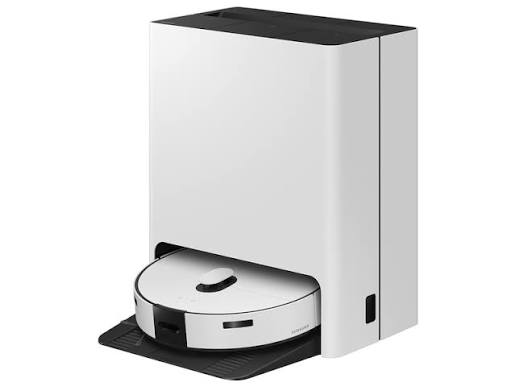
The first step in learning how to set up your Samsung Vacuums for home cleaning is unboxing. Inside the package, you’ll usually find the vacuum unit, a charging dock, power cord, and sometimes extra brushes or filters. Place the charging dock against a wall in an open area with plenty of space around it, this will make it easier for the vacuum to find its way back after cleaning.
Plug in the dock, place the vacuum on it, and let it charge fully before first use. A full charge ensures optimal performance during initial cleaning.
Step 2: Connect to the SmartThings App
A key part of how to set up Samsung Smart Vacuums for home cleaning is connecting your device to Samsung’s SmartThings app.
- Download the SmartThings app from Google Play or the App Store.
- Open the app and tap the “+” icon to add a new device.
- Select Appliances → Robot Vacuum → Samsung Smart Vacuum.
- Follow the on-screen instructions to connect your vacuum to Wi-Fi.
Once paired, you’ll be able to control your vacuum remotely, set schedules, and check cleaning history, all from your phone.
Step 3: Prepare Your Home for Cleaning
One of the most overlooked parts of how to set up Samsung Smart Vacuums for home cleaning is preparing the space. For best results:
Clear small objects, toys, and wires from the floor.
Roll up thin rugs or mats that may get caught.
Ensure doors to rooms you want cleaned are open.
This step helps the vacuum move smoothly and reduces interruptions during its cleaning cycle.
Step 4: Run the Initial Cleaning Cycle
After setup, start your first cleaning session. The vacuum will map out your home using sensors and cameras. During this stage, it may take a bit longer as it learns the layout.
This mapping process is critical in how to set up Samsung Smart Vacuums for home cleaning, because it allows the device to create a smart cleaning path rather than moving randomly.
Step 5: Customize Settings and Schedules
Once mapping is complete, you can personalize cleaning modes in the SmartThings app. Options usually include:
Auto Mode: Standard cleaning for all surfaces.
Spot Cleaning: Targeted cleaning for a specific area.
Edge Mode: Focuses on corners and walls.
Learning how to set up Samsung Smart Vacuums for home cleaning also means taking advantage of scheduling. You can program the vacuum to clean at specific times, whether daily, weekly, or while you’re away at work.
Step 6: Maintain for Long Term Performance
Setup doesn’t stop at the first cleaning. Maintaining your vacuum ensures consistent results:
Empty the dustbin after each session.
Clean or replace filters regularly.
Check for tangled hair or debris in the brushes.
Part of understanding how to set up Samsung Smart Vacuums for home cleaning is knowing that setup is an ongoing process—regular maintenance keeps performance strong.
Conclusion
Now you know exactly how to set up Samsung Smart Vacuums for home cleaning. By unboxing correctly, connecting through the SmartThings app, preparing your space, and customizing cleaning modes, you’ll unlock the full potential of your smart vacuum. Add in routine maintenance, and you’ve got a reliable home-cleaning partner that saves you time and energy every single day.
Samsung’s smart vacuums aren’t just about convenience, they’re about transforming how you experience home cleaning. With the right setup, you’ll quickly realize just how effortless keeping your floors spotless can be.
When you purchase through links on our site, we may earn an affiliate commission which helps in keeping this website running. Here’s how it works.
Use the Code ref-09ngex to get 5% off from Samsung

About the Author: Ikhide Uanseoje
Welcome to SamUniverse! My name is Ikhide Uanseoje, the mind behind this website dedicated to everything Samsung. As a passionate tech enthusiast and lover, I specialize in delivering the latest news, in-depth reviews, and helpful guides about Samsung products, from smartphones and wearables to laptops and accessories.
Born and raised in Nigeria, I’ve always had a fascination with cutting-edge technology and how it shapes our lives. This passion led me to create SamUniverse, a platform where Samsung fans and tech lovers can explore innovations, tips, and updates that truly matter.
When I’m not writing, you’ll find me exploring new tech trends, brainstorming ideas for future posts, or working on ways to make this website your go-to resource for all things Samsung.
Stay tuned to SamUniverse as we uncover the best Samsung has to offer!