How to Stream Games from Your Samsung Phone to TV

Mobile gaming has come a long way, and Samsung smartphones are at the heart of that evolution. With powerful processors, smooth displays, and access to thousands of games, they’ve become mini gaming consoles in our pockets. But what if you want to take that experience to the big screen? That’s where learning How to Stream Games from Your Samsung Phone to TV becomes a real game changer. Whether you’re looking to play solo, show off your skills to friends, or enjoy a more immersive setup, there are several ways to connect your Samsung phone to your TV. This guide will walk you through the methods, benefits, and things to keep in mind before you start streaming.
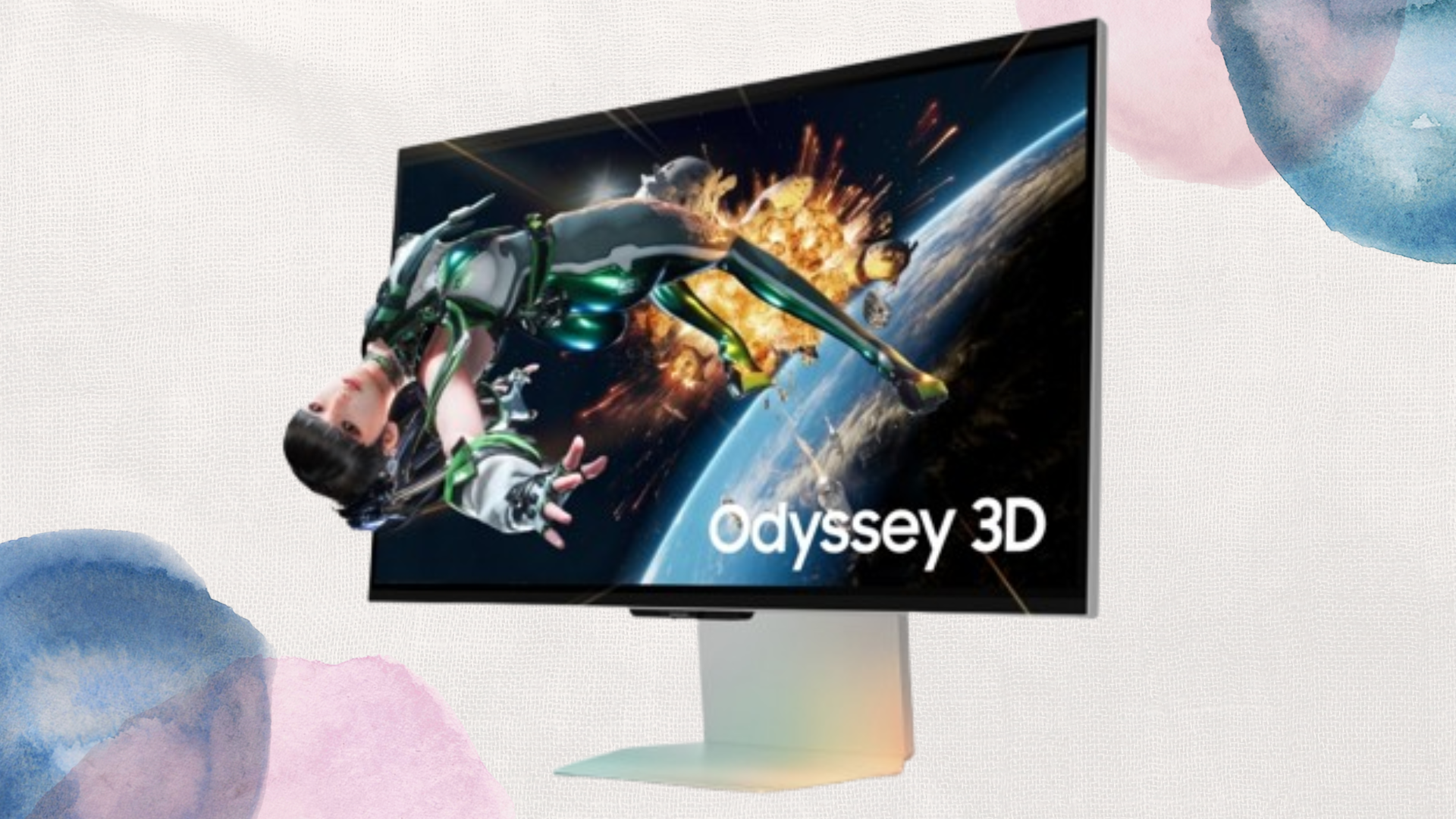
Why Stream Games from Phone to TV?
Before diving into How to Stream Games from Your Samsung Phone to TV, it’s worth asking: why would you want to do this in the first place? Here are a few reasons:
Bigger Screen Experience: Enjoy your favorite games on a larger display without squinting at your phone. Multiplayer Fun: Perfect for party games or when friends want to join in on the action.
Better Comfort: Avoid straining your eyes or neck from long gaming sessions on a small device.
Immersive Gameplay: Games with detailed graphics or fast action feel much more alive on a TV
Methods for How to Stream Games from Your Samsung Phone to TV
1. Using Samsung Smart View
One of the easiest ways to learn How to Stream Games from Your Samsung Phone to TV is by using Samsung’s built-in Smart View feature. Found in the quick settings menu, it allows you to mirror your phone’s screen directly to a Samsung Smart TV or other compatible TVs.
Open Quick Settings and tap Smart View. Select your TV from the available devices. Start your game, and it will appear on the bigger screen.
This method is simple, wireless, and doesn’t require extra apps.
2. Connecting via HDMI Adapter
For gamers who want a more stable and lag-free experience, using a USB-C to HDMI adapter is a reliable method. Plug your Samsung phone into the adapter, then connect it to the TV via HDMI cable. This wired method ensures smooth performance with minimal delay, which is crucial for fast-paced games. If you’re serious about gaming, this is one of the most effective ways in the discussion of How to Stream Games from Your Samsung Phone to TV.
3. Casting with Google Chromecast
If you don’t own a Samsung Smart TV, a Chromecast device can bridge the gap. Install the Google Home app on your Samsung phone, connect it to Chromecast, and mirror your display. It’s slightly less direct than Smart View, but still an easy option when exploring How to Stream Games from Your Samsung Phone to TV.
4. Using Samsung DeX Mode
Samsung DeX transforms your phone into a desktop-like experience when connected to a TV or monitor. While it’s mostly known for productivity, you can also use it for gaming. With a wireless keyboard or game controller, DeX offers a unique way to enjoy mobile titles.
Tips for the Best Gaming Experience
When figuring out How to Stream Games from Your Samsung Phone to TV, keep these tips in mind for smoother gameplay:
- Stable Internet Connection: If your game requires online play, ensure you’re connected to fast and reliable Wi-Fi.
- Use a Controller: Many Samsung phones support Bluetooth controllers, making gaming on the big screen much more enjoyable.
- Adjust Settings: Some games allow you to change resolution or graphics. Optimize them for performance rather than just visuals when streaming.
- Mind the Battery: Long gaming sessions drain your phone quickly. Keep your charger nearby, especially if you’re using wireless streaming.
Common Issues and Fixes
Lag or Delay: Switch to a wired HDMI connection instead of wireless. Poor Quality: Lower the in-game graphics settings or check your Wi-Fi signal strength. No Sound: Ensure audio mirroring is enabled in your Smart View or Chromecast settings.
Conclusion
Learning How to Stream Games from Your Samsung Phone to TV unlocks a whole new level of entertainment. Whether you’re using Smart View for convenience, HDMI for stability, Chromecast for flexibility, or DeX for a unique setup, the options are plenty. At the end of the day, the right method depends on your setup and gaming style. If you want plug-and-play simplicity, go with Smart View. If you crave lag-free sessions, an HDMI adapter is your best bet. Whichever path you choose, streaming games from your Samsung phone to your TV makes mobile gaming more immersive, social, and enjoyable.
When you purchase through links on our site, we may earn an affiliate commission which helps in keeping this website running. Here’s how it works.
Use the Code ref-09ngex to get 5% off from Samsung

About the Author: Ikhide Uanseoje
Welcome to SamUniverse! My name is Ikhide Uanseoje, the mind behind this website dedicated to everything Samsung. As a passionate tech enthusiast and lover, I specialize in delivering the latest news, in-depth reviews, and helpful guides about Samsung products, from smartphones and wearables to laptops and accessories.
Born and raised in Nigeria, I’ve always had a fascination with cutting-edge technology and how it shapes our lives. This passion led me to create SamUniverse, a platform where Samsung fans and tech lovers can explore innovations, tips, and updates that truly matter.
When I’m not writing, you’ll find me exploring new tech trends, brainstorming ideas for future posts, or working on ways to make this website your go-to resource for all things Samsung.
Stay tuned to SamUniverse as we uncover the best Samsung has to offer!