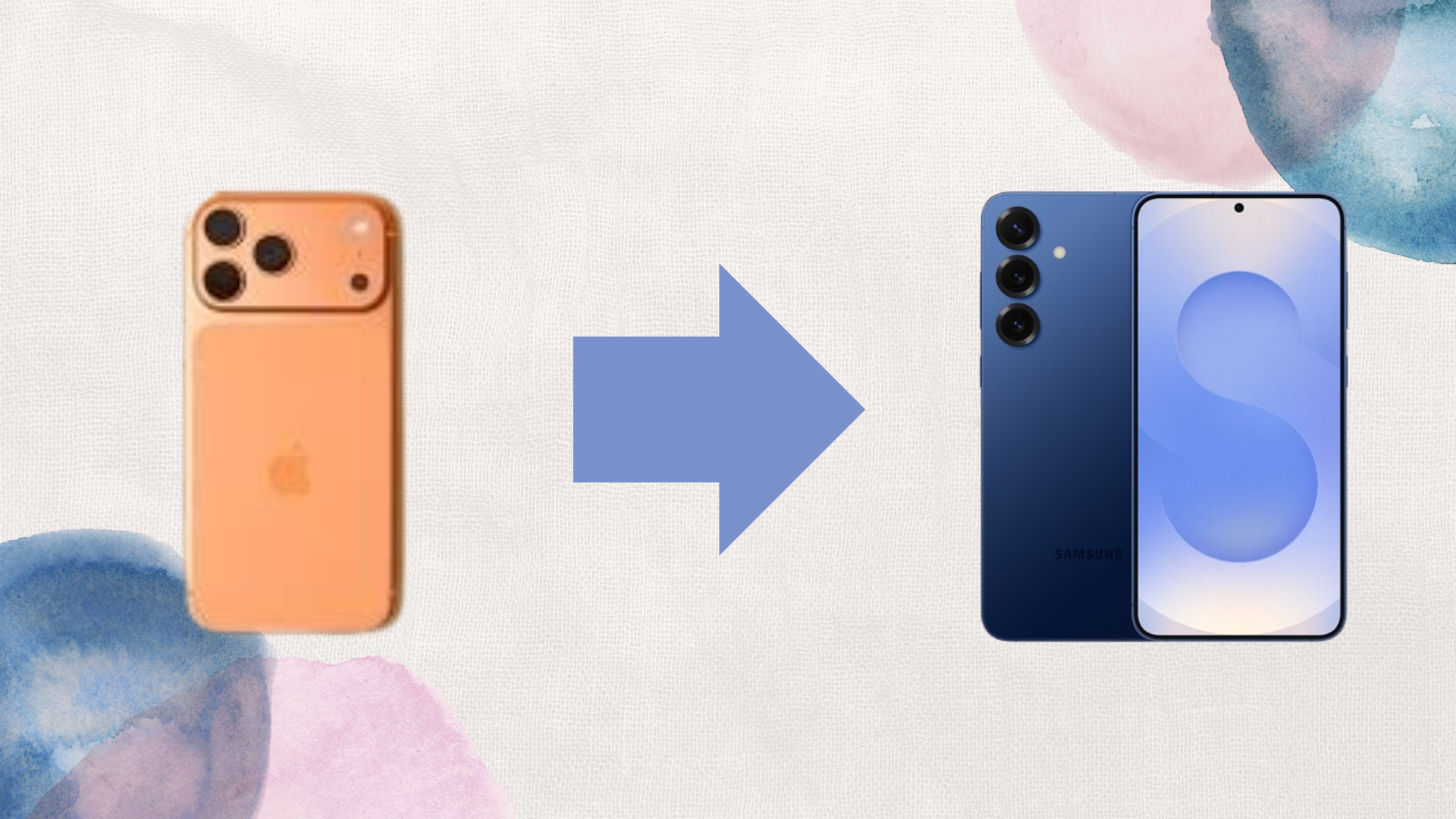
How to Transfer WhatsApp Data from iPhone to Samsung for Free

Switching from an iPhone to a Samsung Galaxy phone no longer means losing your WhatsApp chats. Samsung and WhatsApp now support an official, free way to transfer messages, photos, videos, and voice notes directly from iPhone to Samsung, without paid apps or risky workarounds.
This guide explains the correct and free method to transfer WhatsApp data from iPhone to Samsung, what you need before starting, and common mistakes to avoid.
What You Need Before You Start
To transfer WhatsApp data from iPhone to Samsung for free, a few things must be in place. Your Samsung phone should be new or factory reset, and both devices must use the same phone number for WhatsApp. You’ll also need a USB-C to Lightning cable (or a Lightning cable with a USB-C adapter).
Your iPhone must be running iOS 15 or later, and the Samsung phone should be on a recent version of One UI.
The Free Official Method: Smart Switch
Samsung’s Smart Switch is the only fully supported free method to move WhatsApp chats from iPhone to Samsung.
During Samsung’s initial setup, choose Transfer data from iPhone and connect both phones using a cable. When prompted, select WhatsApp as part of the data transfer.
Smart Switch securely prepares the WhatsApp data, and once setup is complete, you’ll finish the process inside WhatsApp itself.
Completing the Transfer Inside WhatsApp
After Smart Switch finishes, install WhatsApp on your Samsung phone from the Play Store. Open it and verify your phone number, the same number used on your iPhone.
WhatsApp will automatically detect transferred data and prompt you to restore chats. Once restoration is complete, your messages, media, and chat history appear exactly as they were on your iPhone.
What Gets Transferred (and What Doesn’t)
WhatsApp messages, photos, videos, voice messages, and group chats transfer successfully. Your chat history remains intact and organized.
Call history and WhatsApp payment history do not transfer. This is a WhatsApp limitation, not a Samsung issue.
Common Problems and How to Avoid Them
Many users run into issues because the Samsung phone was already set up before starting. If setup is completed, Smart Switch won’t offer WhatsApp transfer unless the phone is reset.
Another common mistake is using different phone numbers. WhatsApp will refuse to restore chats if the number doesn’t match.
FAQ
Can I transfer WhatsApp data wirelessly?
No. A cable connection is required for security and data integrity.
Does this work on all Samsung phones?
It works on most modern Samsung Galaxy devices running recent versions of One UI.
Will my WhatsApp data remain on my iPhone?
Yes, unless you delete it manually. The transfer copies data; it doesn’t erase the source phone.
Can I redo the transfer later?
Only if you reset the Samsung phone and repeat the setup process.
Conclusion
If you’re moving from iPhone to Samsung, the free Smart Switch method is the safest and most reliable way to transfer WhatsApp data. No paid apps, no hacks, and no data loss—just a clean, official transfer supported by both companies.
Set it up correctly the first time, and your WhatsApp chats will feel right at home on your new Samsung device.
When you purchase through links on our site, we may earn an affiliate commission which helps in keeping this website running. Here’s how it works.
Use the Code ref-09ngex to get 5% off from Samsung

About the Author: Ikhide Uanseoje
Welcome to SamUniverse! My name is Ikhide Uanseoje, the mind behind this website dedicated to everything Samsung. As a passionate tech enthusiast and lover, I specialize in delivering the latest news, in-depth reviews, and helpful guides about Samsung products, from smartphones and wearables to laptops and accessories.
Born and raised in Nigeria, I’ve always had a fascination with cutting-edge technology and how it shapes our lives. This passion led me to create SamUniverse, a platform where Samsung fans and tech lovers can explore innovations, tips, and updates that truly matter.
When I’m not writing, you’ll find me exploring new tech trends, brainstorming ideas for future posts, or working on ways to make this website your go-to resource for all things Samsung.
Stay tuned to SamUniverse as we uncover the best Samsung has to offer!