How to Use Samsung Edge Panel

Samsung Edge Panel is one of Samsung most unique features that set it out from it’s competitors. In an attempt to make our lives easier, they were designed to give us quick access to the things we use most often on our Samsung Galaxy smartphones. The Edge Panel lets users access app shortcuts, tools, widgets, split-screen functionalities, and more, with simple swipe gestures from almost every screen, save for some full-screen third-party games.
If you are interested or would you like to know more? Then read on and see what Samsung’s Edge Panels do, how to use them, and how to configure them.

What Are Samsung Edge Panel
The Samsung Edge Panel are small windows, that you can drag from the side of your Samsung device screen.
This window gives you access to a variety of shortcuts and tools. With just a swipe, you can launch your favorite apps, call contacts, check the weather, take screenshots, and do much more without needing to leave the app you’re currently using.
This Feature was originally introduced on the curved Galaxy Edge devices, but now it can be found on most current Samsung device, this includes the Notes, A Series, S Series and Z Series.
How To Enable The Samsung Edge Panel
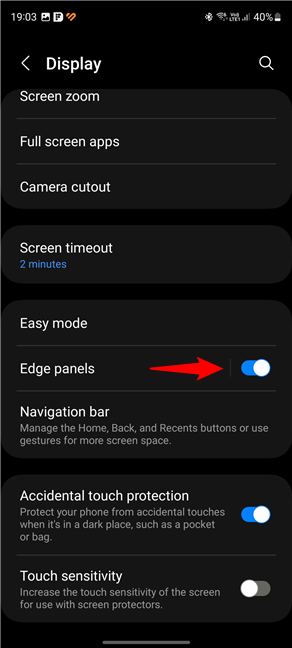
Before you can use the Edge Panel, you have to make sure it’s turned on, you can do this by simply going to Settings, then head to Display and tap on it. Scroll until you see the Edge Panels entry and turn its switch on.
Once it’s turned on, you should see a thin line in the side of your screen looking like this
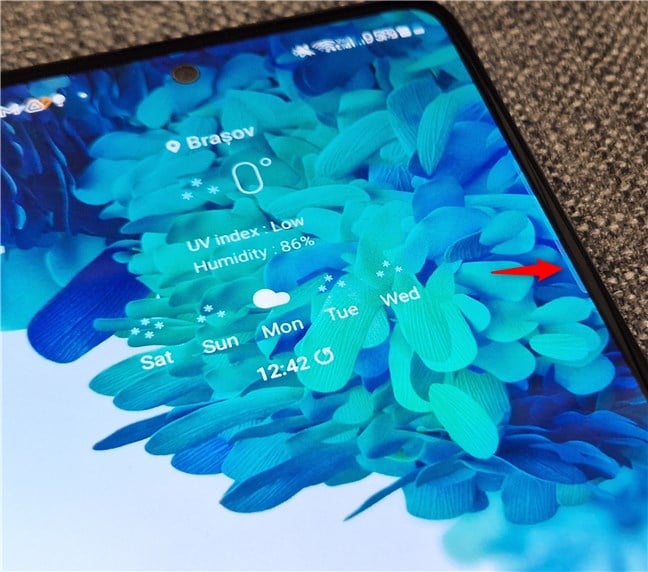
and all you have to do is swipe it with your fingers to access it
How to use The Edge Panels on a Galaxy Device
More that you know how to enable and access the Edge Panel on your smartphone, you’ll need to know how to use them.
Using the Edge Panel isn’t rocket science and it’s easy to use: If the Edge Panel you opened is the Apps panel, you’ll see a list of apps you can launch. Just tap the one you want to use. To go to another panel like people/contacts, weather, compass or more, you can do so by simply swiping the panel left or right.
How a to Customize The Edge Panel
Now that you know how to use the Edge Panel, you can now customize it to your liking. You can customize it by adding it removing the Edge Panel if your choice. To add or remove Edge panels, first, you’ll need to open the Settings app on your Galaxy phone, then access the Display menu and tap Edge panels, followed by Panels (Apps, Contacts, Clipboard, Smart select, Weather, etc.). Swipe through the list of available options, and checkmark the circular buttons located above the panels you want to enable.
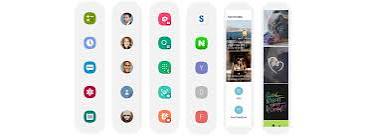
Also, if you discover that you want an Edge Panel with a certain use that you can’t find in the list, know that you can tap the Galaxy Store button at the bottom of the screen to get more Edge Panels. This will launch the Galaxy Store app on your device, and it will automatically takes you to the Edge Panels category. There, you can search for any special Edge Panel you wish. Once you find one you like, you can download it and use it on your device. However, you should note that some of the Edge Panels are not free: they can carry a cost right from the start, or they can contain in-app purchases.
How to Disable or Remove Edge Panel
The Samsung Edge Panel is a great feature, but it might not be for everyone, if you think it’s just going to get in your way or it might trigger accidental touches, you can always disable it by simply following the steps we took when we went to enable it by Going to settings and scroll over to display and tap it, once you’ve tap it, select edge panel and then toggle it off.
Frequently Asked Question
Is The Edge Panel Worth Using Daily?
Yes, the Edge Panel is a great feature that can help speed up some task. The Samsung Edge Panel is perfect for multitaskers and those who want to improve their productivity, or just someone who want quicker access to their apps, contacts and tools faster.
So, Are You Using the Samsung Edge Panel Yet?
With everything you’ve just learned, it’s clear the Samsung Edge Panel isn’t just a fancy feature, it’s a powerful tool that can make your phone smarter, faster, and more fun to use. Whether you just want to use it for multitasking, or you’re a shortcut lover, or just someone who just wants a cleaner home screen, the Edge Panel has something to offer.
So now the question is: Are you using the Edge Panel on your Samsung Galaxy smartphone, or are you still swiping the long way around?
When you purchase through links on our site, we may earn an affiliate commission which helps in keeping this website running. Here’s how it works.
Use the Code ref-09ngex to get 5% off from Samsung

About the Author: Ikhide Uanseoje
Welcome to SamUniverse! My name is Ikhide Uanseoje, the mind behind this website dedicated to everything Samsung. As a passionate tech enthusiast and lover, I specialize in delivering the latest news, in-depth reviews, and helpful guides about Samsung products, from smartphones and wearables to laptops and accessories.
Born and raised in Nigeria, I’ve always had a fascination with cutting-edge technology and how it shapes our lives. This passion led me to create SamUniverse, a platform where Samsung fans and tech lovers can explore innovations, tips, and updates that truly matter.
When I’m not writing, you’ll find me exploring new tech trends, brainstorming ideas for future posts, or working on ways to make this website your go-to resource for all things Samsung.
Stay tuned to SamUniverse as we uncover the best Samsung has to offer!