How To Use Samsung Modes And Routines

Have you ever wanted to instruct your device to do a particular task at a particular time over a specified period. For example automatically turning on DND and Bluetooth everytime you open the Netflix app. This can be easily done in your Galaxy Device by using Modes And Routine. In this article we’ll understand what modes and routines are, how to use them and how they can improve your productivity.
What Are Samsung Mode And Routines
Samsung Mode And Routines are features that are found on Galaxy Device. It is a powerful automation tool built into ONE UI that allows you to customize how your phone behaves in different situations.
This features can be found in your settings app Settings > Modes and Routines (or use the Quick Panel toggle for faster access). This tool is available on most recent Samsung Galaxy phones running One UI 5 and above.
While Samsung Modes And Routines serves the same purpose, they both function in different ways.
Modes
Modes are setups that adjusts multiple settings on your phone to suit specific situation, example of Modes are Sleep, Exercise, Work, Driving. Think of them as all-in-one profiles. When you activate a Mode, your phone adjusts itself, enabling or disabling features, changing sound profiles, setting screen brightness, and more.
Example is the Sleep mode, which you can set to turn on DND, lower brightness, and turn off AOD, which will l can lead to a more peaceful night.
Routines
Routines is more advanced and flexible than Modes, it is set using a trigger (if) and and action (then). For example
If you open Spotify app
Then turn on Bluetooth and DND
When using routines, you are in full control, you can automate the actions on your phone based on your habits, location, time of day, battery level and more.
How To Use Samsung Mode
Samsung Modes an easy feature anyone can use activate them manually or set them to run automatically based on triggers such as time, location, or connected devices.
Available Modes On Samsung Phones
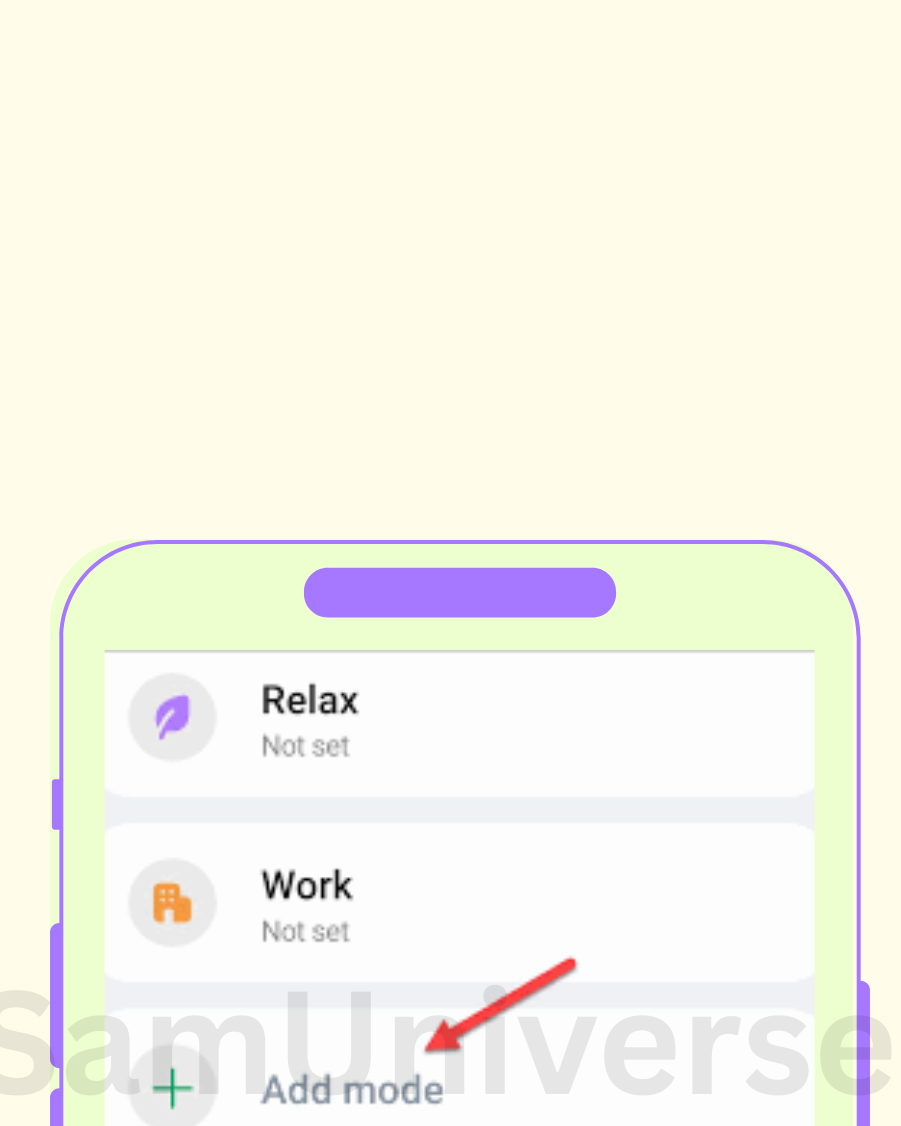
When you go to Samsung mode settings, you will see that some mode have been automatically added by default. This includes:
Sleep: This helps you have a better sleep by turning on some features like: turning on Do Not Disturb, dims screen and off AOD.
Driving: This helps you stay focused while driving to avoid accidents.
Work: This helps you stay focus and productive during work by tweaking some features, like switching to focus mode and switching to Do Not Disturb.
Exercise: This mutes your notifications and keeps your phone ready for workouts.
Relax: This helps reduce distractions and enables relaxing features (like soothing music).
Custom Mode: With this feature, you can create your own Mode tailored to your lifestyle.
How to Customize a Mode
Personalizing Mode to your lifestyle is not so hard to do. Firstly you have to:
- Go to Settings > Modes and Routines > Modes.
- Select a Mode you want (e.g, Sleep, Exercise or Work.)
- Tap “Turn on automatically” to choose when the Mode should activate: whether based on time, your location or device based(like what happen when you connect your headphones)
- You can then adjust the settings to how you want it, like reduce brightness, turning on Wi-Fi and mute calls
- Add or Restrict Apps: Choose which apps allowed and which are restricted during this Mode:
How To Create A Routine
Now that we know our way around Mode, let’s focus on how to create a routine. Samsung routine is just about making your phone smarter by automating task based on your habits, environment, and preferences. With just a few taps, you can tell your phone: “If this happens… then do that.”
For example: If you plug in your charger, Then enable battery saver and lower screen brightness.
Setting Up A Routine
- Go to Settings > Modes and Routines > Routines.
- Tap in the + button to create a new Routine.
- Under the “If” choose a condition, that is what you do that will trigger the routine. Example Time (e.g., whenever I connect my headset.)
- Then under the “Then”, choose the Action your phone should perform. Example: Open Spotify.
- Then the last thing to do is name your routine (e.g. Music Time) and then tap Done.
With that, your routine is now active. You can pause or edit it any time on the Routine Lab.
Tips to Get the Most Out of Modes and Routines
Now that we’ve all seen what Samsung Mode and Routines can do and perhaps we’ve already set it up. I have some few suggestions that can help you get the most out of the Modes and Routines settings.
- Start Simple: The first thing you don’t want to happen is to complicate things or make it too complex. Instead of creating 10 routines at once, start by creating one or two useful automations like silencing your phone at night or turning on Wi-Fi when you are at home.
- Use The Location-Based a triggers Wisely: Using of Location-based triggers are great but will require you to leave your location on at all the time, thereby draining your battery. Instead of using location triggers you can use things like Wifi or Bluetooth (like when I on my Wi-Fi, turn on DND or when I connect my headphone, open Spotify)
- Customize Modes for Different Parts of Your Day: There is no rule that says you need to stick with Samsung default Modes. You can also make custom mode like Study Time, Content Creation, Gym Time. This will help you tailor your phone behaviour to your lifestyle.
Conclusion
Samsung Mode and Routines are more than just hidden features, they are important tools that can help improve your productivity, sleep and lifestyle.
By setting up just a few well-planned Modes or Routines, you’ll spend less time fiddling with settings and more time enjoying a smoother, smarter experience. All you need to do know is to take a few minutes now and explore it.
When you purchase through links on our site, we may earn an affiliate commission which helps in keeping this website running. Here’s how it works.
Use the Code ref-09ngex to get 5% off from Samsung

About the Author: Ikhide Uanseoje
Welcome to SamUniverse! My name is Ikhide Uanseoje, the mind behind this website dedicated to everything Samsung. As a passionate tech enthusiast and lover, I specialize in delivering the latest news, in-depth reviews, and helpful guides about Samsung products, from smartphones and wearables to laptops and accessories.
Born and raised in Nigeria, I’ve always had a fascination with cutting-edge technology and how it shapes our lives. This passion led me to create SamUniverse, a platform where Samsung fans and tech lovers can explore innovations, tips, and updates that truly matter.
When I’m not writing, you’ll find me exploring new tech trends, brainstorming ideas for future posts, or working on ways to make this website your go-to resource for all things Samsung.
Stay tuned to SamUniverse as we uncover the best Samsung has to offer!