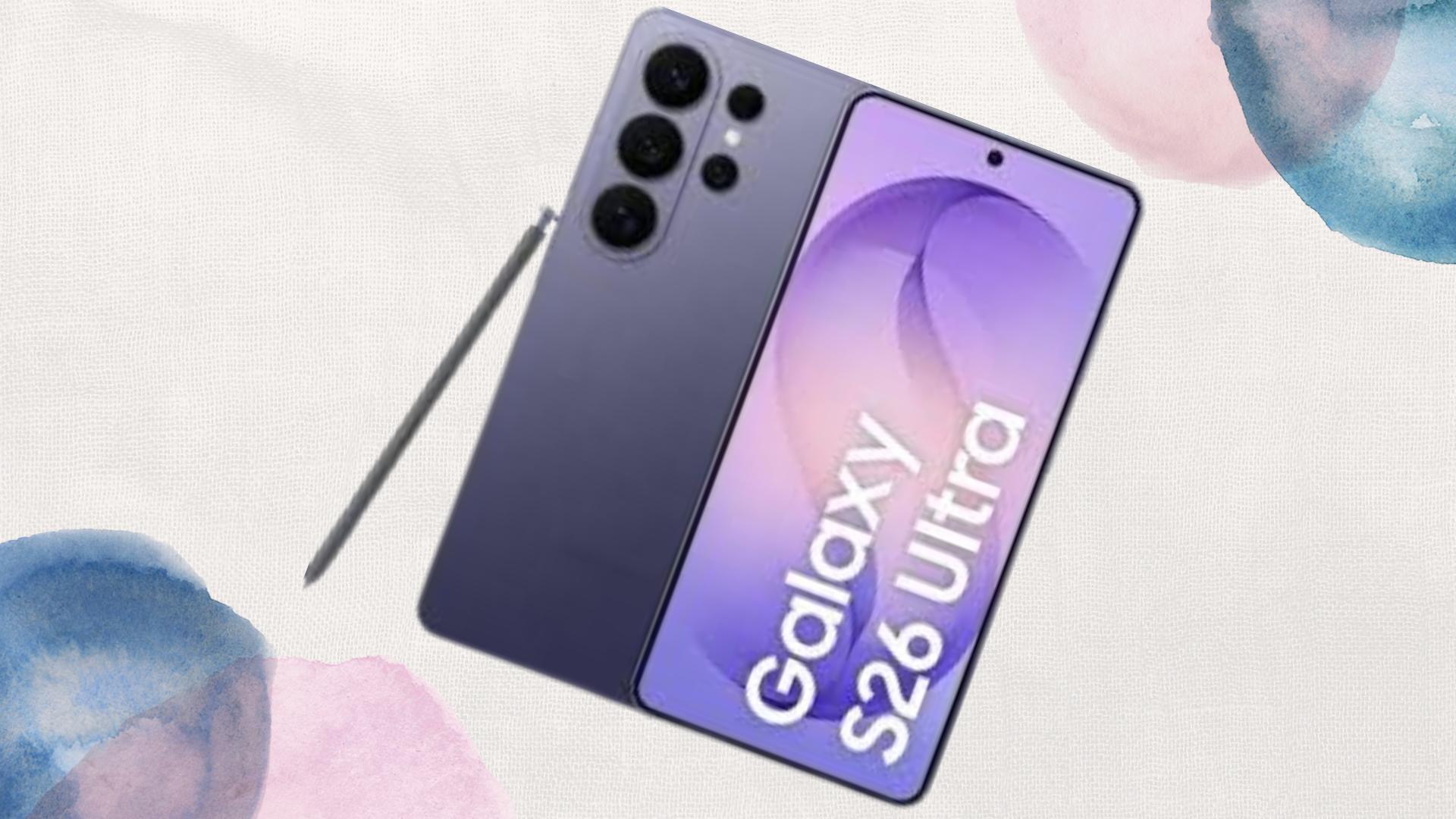
Mastering Pro Video Mode on the Galaxy S26 Ultra: The Ultimate Guide for Mobile Filmmakers

So, you’ve finally unboxed the beast. The Samsung Galaxy S26 Ultra isn’t just a phone; in 2026, it’s arguably the most capable “B-cam” (or even A-cam) sitting right in your pocket. While the auto mode is fantastic for quick Instagram stories, if you really want to “message the sticker” and produce content that looks like it was shot on a RED or an Arri, you need to dive into the Pro Video mode.
With the new Snapdragon 8 Elite Gen 5 pushing the NPU to its limits and that massive 200MP F1.4 main sensor, the hardware is screaming for manual control. Here is your comprehensive masterclass on turning your S26 Ultra into a professional cinema rig.
1. The Setup: Making Pro Video Accessible
Before we talk about ISO or shutter angles, we need to fix the UI. Samsung still buries the best features under the “More” tab.
- Customizing the Bar: Open the Camera app, tap More, and drag the Pro Video icon down into your main mode selector. You don’t want to be fumbling through menus when the “golden hour” light is fading.
- Settings to Keep: Go to Camera Settings > Settings to Keep > and toggle Camera Mode on. This ensures that if you’re shooting a scene, lock your phone, and unlock it again, you’re still in Pro Video mode rather than defaulting back to the standard Photo mode.
2. The Hardware Advantage: Why the S26 Ultra is Different
The S26 Ultra introduced the F1.4 aperture on the main 200MP sensor. This is a huge jump from the F1.7 on the S25 Ultra. Why does this matter?
- Natural Bokeh: You get a shallower depth of field without needing “Portrait Video” AI hacks.
- Low Light (Nightography): The sensor pulls in 47% more light, meaning cleaner shots with less digital noise.
- The 50MP Ultra-Wide: Unlike previous years where the ultra-wide was an afterthought, the 50MP F1.9 sensor on the S26 Ultra is now sharp enough to be used for professional architectural or landscape cinematography.
3. Mastering the Exposure Triangle
In Pro Video mode, you have three main levers: ISO, Shutter Speed, and Aperture (though the aperture is fixed at F1.4, you control the light using the other two).
Shutter Speed & The 180-Degree Rule
If you want that “cinematic” motion blur—where movement looks natural and not choppy—you must follow the 180-degree rule.
- The Rule: Your shutter speed should be double your frame rate.
- The Setting: If you are shooting at 24fps, set your shutter speed to 1/50. If you are shooting at 60fps for slow motion, set it to 1/120.
The New “Shutter Priority” Mode
A hidden gem in One UI 8.5 is the ability to lock your shutter speed while leaving ISO on “Auto.” This is a lifesaver for run-and-gun vloggers. You can ensure your motion blur stays consistent while the phone automatically adjusts the brightness (ISO) as you move from sunlight into shadows.
ISO Management
Keep the ISO as low as possible (ISO 50 or 100) to avoid grain. With the S26 Ultra’s F1.4 lens, you can stay at low ISOs even in dim environments where older phones would struggle.
4. The Game Changer: Samsung Log & APV Codec
For the first time, Samsung has truly caught up with (and some say surpassed) Apple’s ProRes with the APV (Advanced Professional Video) Codec.
Why use Samsung Log?
When you shoot standard video, the phone “bakes in” the colors, contrast, and sharpness. Samsung Log captures a “flat” image with much higher dynamic range. It looks gray and boring on your screen, but it holds all the detail in the highlights (the sky) and the shadows (the grass).
- Pro Tip: Use a Preview LUT in the settings so you can see what the final graded footage will look like while you’re recording, even though the raw file remains flat.
APV HQ vs. APV LQ
- APV HQ: This is 10-bit 4:2:2 all-intra compression. It’s a massive file, but it’s what you use if you plan on doing heavy color grading or professional client work.
- APV LQ: Still 10-bit, but more manageable. Perfect for high-quality YouTube content or tech reviews for Sam-Universe.
5. Focus: Manual vs. Focus Peaking
The S26 Ultra’s Dual Pixel PDAF is fast, but for “cinematic” reveals, you need manual focus.
- Focus Peaking: When you switch to manual focus, you’ll see green outlines on your subject. This is “Peaking,” and it tells you exactly what is in focus.
- Rack Focus: Start with your focus on a foreground object (like a leaf) and slowly slide the manual focus bar to a background subject (like a building). The F1.4 lens makes this look incredibly professional.
6. Audio: Don’t Ignore the Ears
Great video with bad audio is just bad video. The Pro Video mode gives you a VU meter and mic directionality controls:
- Omni: Picks up everything (good for atmosphere).
- Front: Focuses on the person talking in front of the lens (vlogging).
- Rear: Focuses on the subject you are filming.
- USB/Bluetooth: The S26 Ultra allows you to monitor audio levels in real-time. Use the Galaxy Buds4 Pro as a wireless lavalier mic if you’re in a pinch!
7. Advanced Stabilization: Horizontal Lock
One of the standout features this year is Horizontal Lock. In Pro Video mode, even if you tilt the phone up to 45 degrees while running, the horizon stays perfectly level. It uses the 200MP sensor to “crop in” and gimbal-stabilize the footage digitally.
- Note: This works best in 4K. If you’re shooting in 8K, you lose this level of stabilization because the sensor doesn’t have enough “room” to crop.
8. The “Secret Sauce” Settings (Camera Assistant)
To truly “message the sticker,” you need to install Camera Assistant from the Galaxy Store.
- Video Softening: Set this to Medium or High. Modern smartphone sensors are too sharp, which makes them look “digital.” Softening the video slightly gives it a more organic, film-like texture that mimics expensive cinema lenses.
- Anamorphic Desqueeze: If you’re using an external anamorphic lens, the S26 Ultra can now desqueeze the footage in the preview, so you see the widescreen cinematic look in real-time.
9. Essential Gear for Pro Video
You can’t master Pro Video with the phone alone.
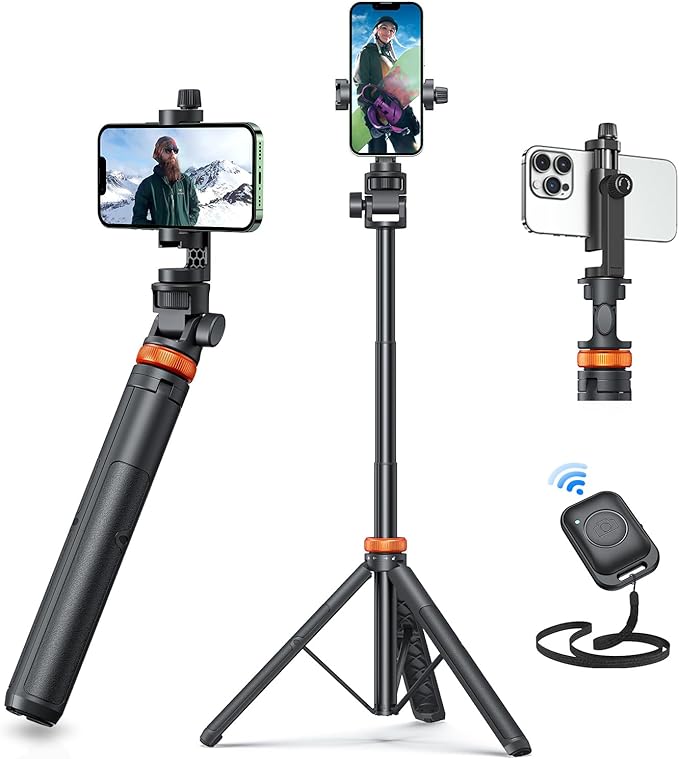
- ND Filters (Neutral Density): Since the F1.4 aperture is so wide, shooting at 1/50 shutter speed in broad daylight will overexpose your shot. You need a magnetic ND filter (like those from Freewell or PolarPro) to act as sunglasses for your camera.
- External SSD: If you’re shooting APV HQ in 4K 120fps, you will eat through 512GB in no time. Plug a fast T9 SSD into the USB-C port to record directly to external storage.
Conclusion
Mastering the Galaxy S26 Ultra’s Pro Video mode is about taking the “brain” away from the AI and giving it back to the creator. By locking your shutter speed, shooting in Samsung Log, and using the APV codec, you’re no longer just “taking a video”—you’re filmmaking.
The S26 Ultra has provided the canvas; now it’s time for you to go out and paint.
When you purchase through links on our site, we may earn an affiliate commission which helps in keeping this website running. Here’s how it works.
Use the Code ref-09ngex to get 5% off from Samsung

About the Author: Ikhide Uanseoje
Ikhide is a Lagos-based tech creator and the founder of Sam-Universe. He is a Samsung specialist focused on real-world utility, from professional AMV editing workflows to mobile productivity. Follow his journey as he bridges the gap between premium tech and the hustle of student life.