Samsung Black Screen But Phone Is On? 9 Proven Fixes (2026 Guide)

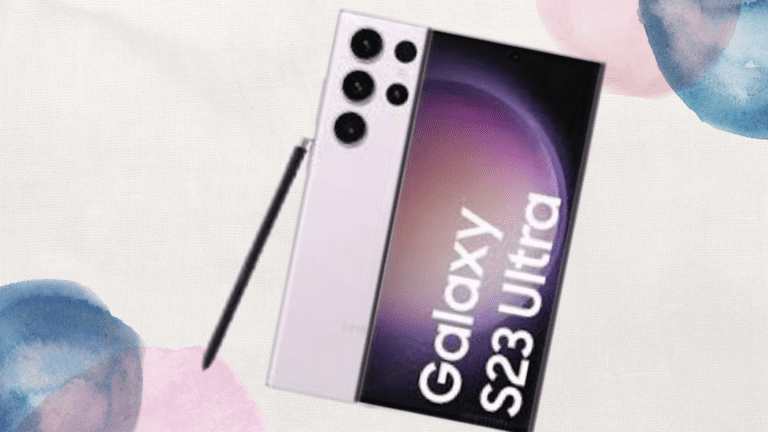
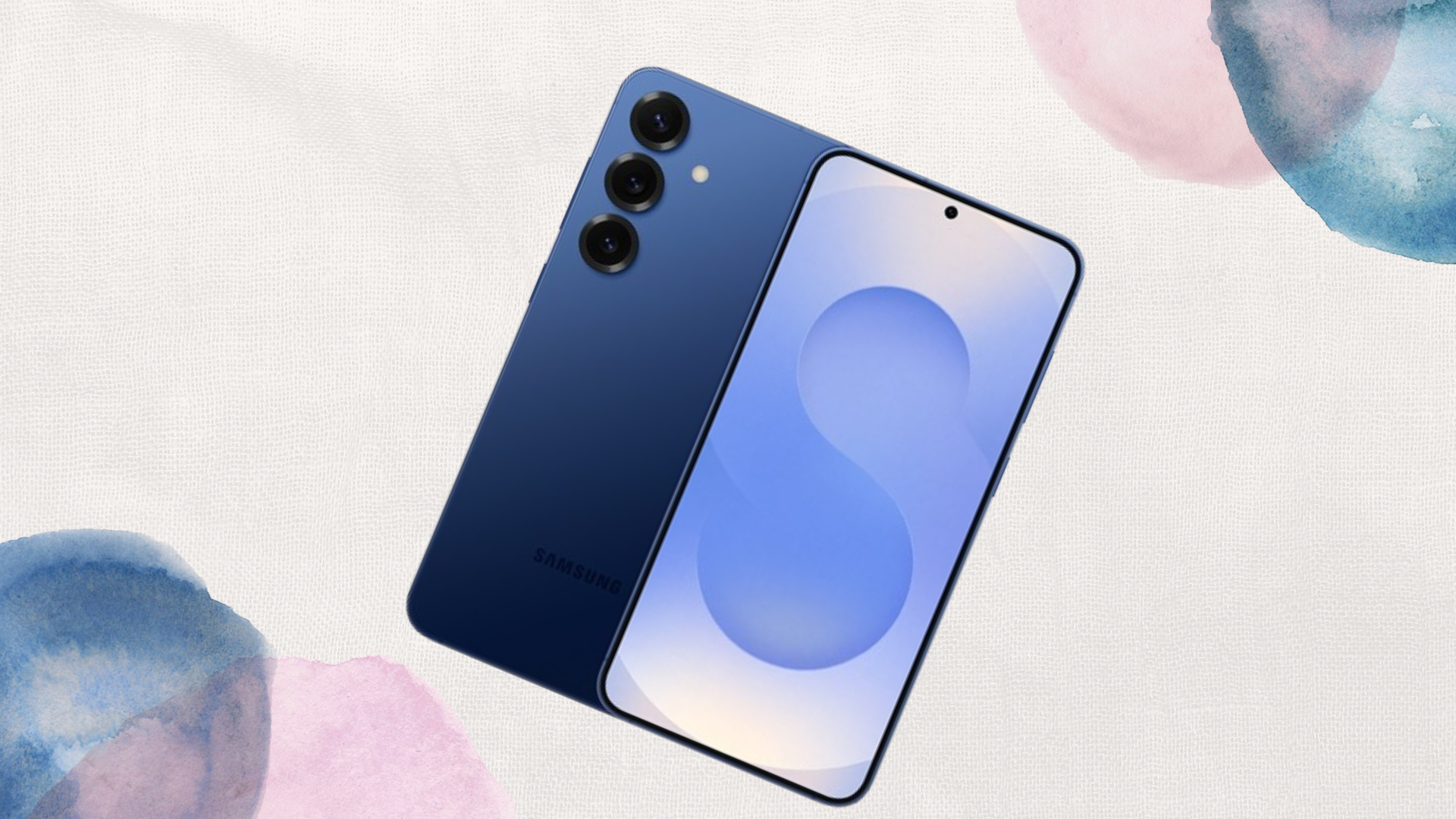
The “Black Screen of Death” remains one of the most stressful experiences you can undergo as a Samsung users. Whether you’re rocking the latest Galaxy S26 Ultra with its 6.9-inch Privacy Display or a veteran S22 or any A Series phone, the symptoms are the same: the phone vibrates, notifications chime, and it might even get warm, but the screen, the screen remains pitch black. Then you start wondering, what’s wrong?, did the phone fall down somewhere?, is the screen really bad?, do I really need to replace the screen?. This is something many people have been through, Samsung and non Samsung users.
In March 2026, with the latest rollout of One UI 8.5, we’ve seen a rise in “Display Driver Crashes” related to new AI power-management features. Before you go and book an expensive repair and waste some few bucks, follow these 9 proven steps I’ve tried for myself before to troubleshoot your device like a pro.
1. The “15-Second Hard Force” Restart
This is like the “turn it off and on again” on steroids. A standard restart won’t work if the OS is frozen, you won’t be able to press the restart button. You need to simulate a battery disconnect.
- The Steps: Press and hold the Power (Side) Button and the Volume Down button simultaneously.
- The 2026 Catch: With Samsung recent phones, you need to hold these down for at least 10-15 full seconds. Do not let go when you feel a vibration; wait until the circular Samsung Galaxy logo appears on the screen.
- Why it works: It cuts the power to the logic board for a millisecond, forcing the display driver to reload from scratch.
2. The “Charge and Chill” Method
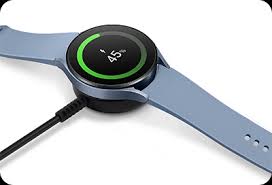
If your phone is on but the screen is black, the battery might be in a “Deep Discharge” state where it has just enough juice to power the motherboard but not the high-nit AMOLED panel.
- The Fix: Plug your phone into a Samsung-certified 45W or 60W charger. Leave it for at least 30 minutes to charge.
- Pro Tip: Look for the charging brick’s LED. If your phone feels slightly warm after 20 minutes, it’s drawing power. After 30 minutes, perform the Force Restart (what we explained in Fix 1) while it is still plugged into the wall.
3. Disable the “Flex Magic Pixel” Glitch (For The S26 Ultra Only)
The S26 Ultra introduced the Privacy Display (Flex Magic Pixel) during the February 2026 unveil, which limits viewing angles so others can’t see your screen, this was the talking point about the S26 Ultra by Samsung and other content creators. If this software layer crashes, it can make the screen appear black from almost every angle.
- The Fix: Take the phone into a completely dark room. If you can see a very faint glow or “grayness” on the screen, the backlight is on but the pixels are being told to stay black.
- Solution: Use Bixby/Gemini. Long-press the side button (if set) or say, “Hey Bixby, turn off Privacy Display” or “Hey Bixby, set brightness to 100%.”
4. Boot into Safe Mode
Sometimes, a third-party app (especially those 2026 “AI-enhanced” launchers) becomes incompatible with One UI 8.5, causing the system UI to crash.
- How to enter: Power the device off (or force restart). When the Samsung logo appears, press and hold Volume Down until the phone finishes booting.
- The Result: If the screen comes on and says “Safe Mode” in the corner, a recently installed app is the culprit. Uninstall any apps added in the last 24 hours.
5. The “Recovery Mode” Cache Wipe
Corrupted system data after a firmware update is a leading cause of display glitches. You can fix this without deleting your photos.
- Connect your phone to a PC or Mac via USB-C (Modern Samsungs often require this “handshake” to enter Recovery).
- Hold Volume Up + Power until the recovery menu appears.
- Use the volume keys to select “Wipe Cache Partition” (NOT Factory Reset).
- Select “Yes” and then “Reboot System Now.”
6. The “Gentle Massage” (Z Fold 7 & Flip Users)
Foldables have a fragile ribbon cable that runs through the hinge. Over time, or after a minor bump, this cable can slightly unseat.
- The Fix: Using your thumbs, apply very firm (but not cracking) pressure around the edges of the screen and near the hinge.
- Logic: This can sometimes reseat a loose display connector just enough to regain a signal. If the screen flickers during this process, you definitely have a hardware connection issue.
7. SmartThings Find: The Remote Wake-Up
If your phone is connected to Wi-Fi or 5G, you can use Samsung’s SmartThings Find (formerly Find My Mobile) to “ping” the screen.
- The Steps: Go to smartthingsfind.samsung.com on another device.
- The Trick: Log in and select “Unlock.” This forces the phone to bypass the lock screen and refreshes the display’s “Always On” state. Often, this “wakes up” a stuck display driver.
8. The External Display Test (Samsung DeX)
This will tell you once and for all if your phone is “dead” or if only the screen is broken.
- The Test: Use a USB-C to HDMI adapter to connect your phone to a TV or monitor.
- The Win: If the Samsung DeX desktop or your phone’s wallpaper appears on the TV, your phone is perfectly fine—only the internal display panel needs replacing. This allows you to back up your data before sending it for repair.
9. Samsung Smart Switch (The Final DIY Attempt)
If nothing else works, your firmware might be corrupted beyond a simple cache wipe.
- The Fix: Install Samsung Smart Switch on your computer. Connect your phone via USB.
- Emergency Recovery: If the software recognizes the phone, look for the “Software Update and Initialization” or “Emergency Software Recovery” option. This will reinstall the entire OS.
- Warning: This may result in data loss if you haven’t backed up recently.
When to call it: Samsung Care+ and Modular Repairs
If none of these fixes work, and your phone doesn’t show an image on an external monitor, the motherboard may have shorted. However, in 2026, Samsung has made the S26 series more modular. An authorized service center can now often replace just the display ribbon assembly for under $100, rather than replacing the entire screen unit for $300+.
Found this guide helpful? Don’t let your friends panic when their Galaxy goes dark, share this 2026 guide to save them a trip to the repair shop, Also visit our website for more about Samsung how to guides!
When you purchase through links on our site, we may earn an affiliate commission which helps in keeping this website running. Here’s how it works.
Use the Code ref-09ngex to get 5% off from Samsung

About the Author: Ikhide Uanseoje
Welcome to SamUniverse! My name is Ikhide Uanseoje, the mind behind this website dedicated to everything Samsung. As a passionate tech enthusiast and lover, I specialize in delivering the latest news, in-depth reviews, and helpful guides about Samsung products, from smartphones and wearables to laptops and accessories.
Born and raised in Nigeria, I’ve always had a fascination with cutting-edge technology and how it shapes our lives. This passion led me to create SamUniverse, a platform where Samsung fans and tech lovers can explore innovations, tips, and updates that truly matter.
When I’m not writing, you’ll find me exploring new tech trends, brainstorming ideas for future posts, or working on ways to make this website your go-to resource for all things Samsung.
Stay tuned to SamUniverse as we uncover the best Samsung has to offer!