Samsung Galaxy A56 Overheating: 5 Easy Fixes to Cool It Down

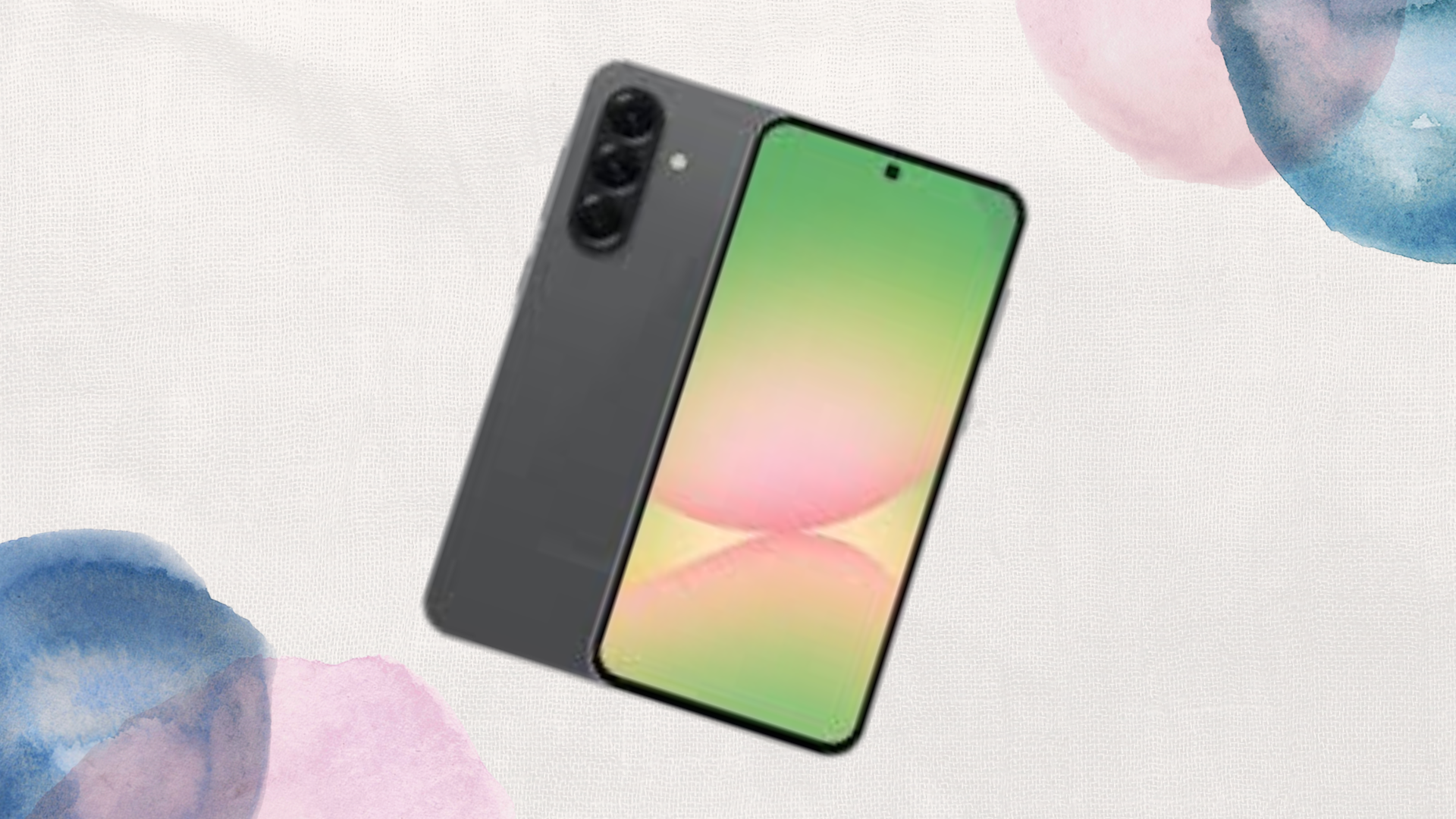
If your Samsung Galaxy A56 is getting unusually hot during use, it can be worrying. Overheating not only makes the phone uncomfortable to hold but can also affect battery life, performance, and long-term hardware health. Fortunately, overheating is often caused by software, app, or usage issues rather than a serious hardware fault. This guide will show you five effective ways to cool down your Galaxy A56 and prevent future heat buildup.
1. Close Unnecessary Apps and Background Processes
One of the most common reasons for overheating is too many apps running simultaneously. Background apps, especially social media, streaming services, and games, can put heavy strain on the processor and battery.
Open the Recent Apps menu and swipe away apps you aren’t using. For more thorough management, go to Settings > Battery and device care > Battery > Background usage limits to restrict unnecessary apps from running in the background. This not only cools your phone but also improves overall battery life.
2. Avoid Intensive Tasks While Charging
Using your Galaxy A56 while charging generates extra heat. Gaming, video streaming, or running resource-heavy apps while the phone is plugged in can push the temperature up quickly.
To prevent this, try to pause intensive activities while charging. If you need to use your phone, reduce screen brightness, turn off features like GPS or Bluetooth, and consider using Fast Charging only when necessary, as it generates more heat.
3. Clear Cache and Update Software
A corrupted system cache or outdated software can cause overheating. Cached files from apps can slow down the phone and make the processor work harder.
Clear the cache by going to Settings > Device care > Storage > Clean now. Additionally, ensure your phone is running the latest software by navigating to Settings > Software update > Download and install. Updates often include fixes for battery management and performance issues that can help reduce overheating.
4. Monitor and Uninstall Problematic Apps
Some apps may be poorly optimized and cause the processor to run excessively, leading to heat buildup.
Go to Settings > Battery and device care > Battery > Usage since full charge to see which apps are using the most battery. If an app shows unusually high usage, consider updating it, limiting its background activity, or uninstalling it entirely. This is especially common with games, streaming apps, or apps running continuous notifications.
5. Optimize Settings for Cooler Performance
Several phone settings can contribute to overheating if left unchecked. Features like High Refresh Rate displays, Always-On Display, or location tracking can make your phone warmer over time.
Reduce screen refresh rate to 60Hz when high-speed display isn’t necessary, disable Always-On Display, and turn off GPS when it’s not needed. Lowering brightness or enabling Adaptive Battery mode can also reduce heat generation significantly.
FAQ
Q1: Can overheating damage my Galaxy A56 permanently?
Yes, prolonged overheating can shorten battery lifespan, cause temporary performance throttling, or in extreme cases, affect internal components. However, following the fixes above usually prevents permanent damage.
Q2: Why does my phone get hot even when idle?
Background apps, sync processes, or a bug in the software can keep the CPU active, generating heat. Clearing the cache and monitoring app usage usually solves this.
Q3: Is it safe to use a third-party charger if my phone overheats?
Third-party chargers, especially cheap or non-certified ones, can generate extra heat or deliver inconsistent voltage. Using a Samsung-certified charger is always safer.
Conclusion
Overheating on the Samsung Galaxy A56 is common but usually fixable with simple adjustments. By closing unnecessary apps, avoiding heavy use while charging, clearing cache, monitoring apps, and optimizing settings, you can keep your phone running cool and efficiently. Regular maintenance and awareness of usage habits are key to preventing overheating, protecting your device, and ensuring smooth, long-lasting performance.
When you purchase through links on our site, we may earn an affiliate commission which helps in keeping this website running. Here’s how it works.
Use the Code ref-09ngex to get 5% off from Samsung

About the Author: Ikhide Uanseoje
Welcome to SamUniverse! My name is Ikhide Uanseoje, the mind behind this website dedicated to everything Samsung. As a passionate tech enthusiast and lover, I specialize in delivering the latest news, in-depth reviews, and helpful guides about Samsung products, from smartphones and wearables to laptops and accessories.
Born and raised in Nigeria, I’ve always had a fascination with cutting-edge technology and how it shapes our lives. This passion led me to create SamUniverse, a platform where Samsung fans and tech lovers can explore innovations, tips, and updates that truly matter.
When I’m not writing, you’ll find me exploring new tech trends, brainstorming ideas for future posts, or working on ways to make this website your go-to resource for all things Samsung.
Stay tuned to SamUniverse as we uncover the best Samsung has to offer!