Samsung Smart TVs: How to Use Gaming Mode for the Best Experience

If you own a Samsung Smart TV and love gaming, you’ve probably wondered how to get the smoothest visuals and the most responsive controls. That’s where Samsung Smart TVs how to use Gaming Mode for the best experience comes in. Samsung designed Gaming Mode to reduce input lag, optimize visuals, and provide an overall better gaming session, whether you’re playing on a console, PC, or even cloud gaming platforms.
This guide will walk you through what Gaming Mode is, how to activate it, and why it makes such a big difference when playing your favorite titles.
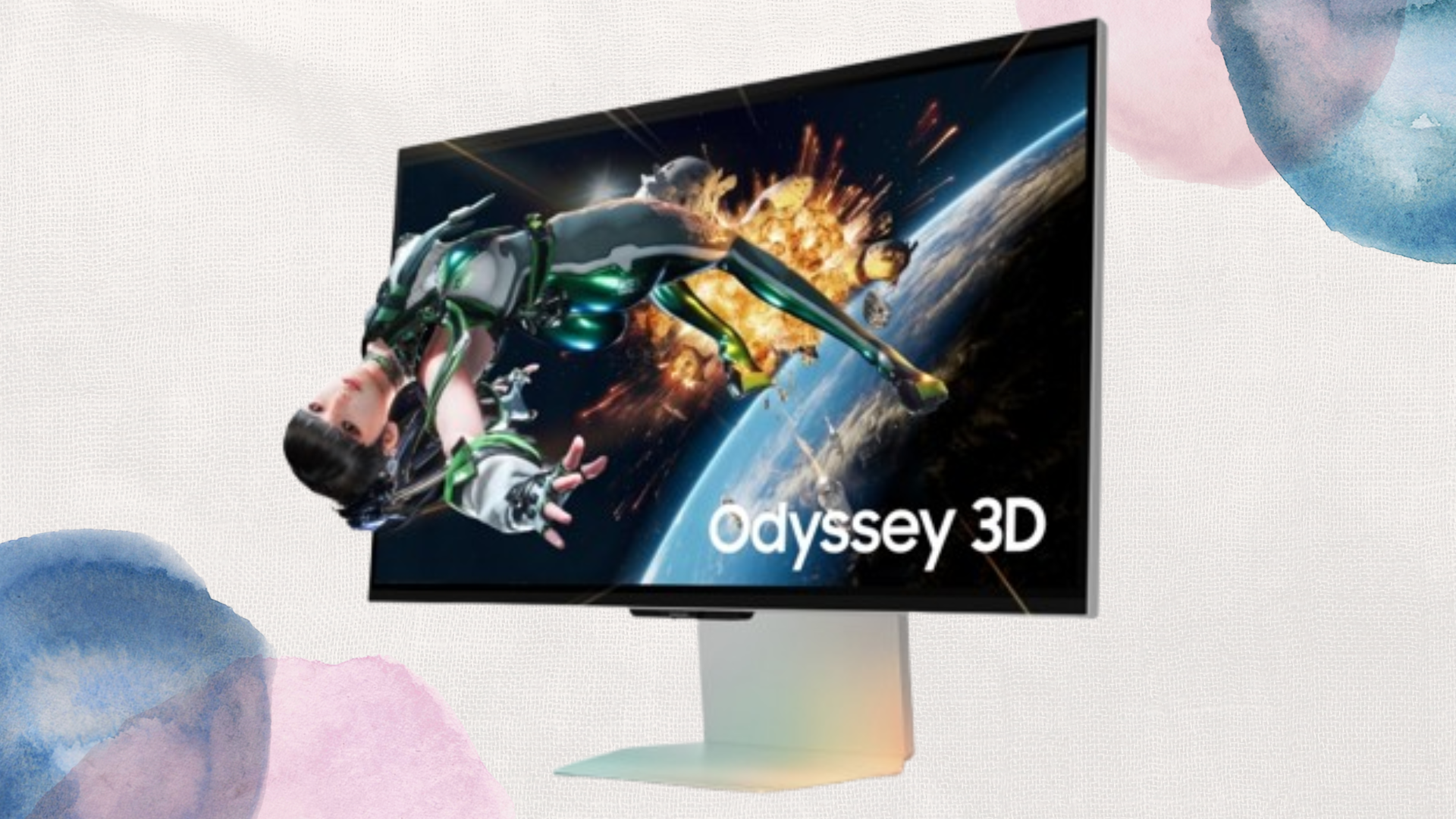
What Is Gaming Mode on Samsung Smart TVs?
Before diving into Samsung Smart TVs how to use Gaming Mode for the best experience, it’s important to understand what Gaming Mode actually does. Normally, a Smart TV applies several layers of video processing to enhance movies and shows—things like upscaling, noise reduction, and image smoothing. While that’s great for Netflix or sports, it introduces noticeable delay during gaming.
Gaming Mode cuts down that processing and prioritizes speed, lowering input lag so your button presses and on-screen actions feel almost instantaneous. This makes fast-paced games like shooters, racing titles, or fighting games much more responsive.
Samsung Smart TVs How to Use Gaming Mode for the Best Experience
Here’s a simple walkthrough on Samsung Smart TVs how to use Gaming Mode for the best experience:
- Open Settings: Using your remote, press the Home button and navigate to Settings.
- Go to External Device Manager: Look for General or Connections depending on your model, then select External Device Manager.
- Enable Game Mode: Find Game Mode Settings and switch it on.
- Adjust Game Motion Plus (Optional): For smoother visuals, you can tweak options like blur reduction, judder reduction, and LED clear motion.
Once enabled, you’ll instantly notice reduced lag and sharper responsiveness when gaming.
Why Gaming Mode Improves Your Gameplay
Activating Samsung Smart TVs how to use Gaming Mode for the best experience isn’t just about speed—it also enhances the way games look and feel. Some key benefits include:
Lower Input Lag: Essential for competitive or fast-paced gaming.
Optimized Picture Quality: Colors stay vivid while maintaining responsiveness.
HDR and Variable Refresh Rate Support: On newer models, Gaming Mode ensures you can use advanced features like VRR and ALLM (Auto Low Latency Mode).
More Immersive Gameplay: By reducing distractions caused by lag, the gaming world feels more natural.
Common Questions About Gaming Mode
Do I always need Gaming Mode on?
No, Gaming Mode is best when you’re playing. For movies or casual TV, you may prefer turning it off since standard picture processing improves cinematic visuals.
Does Gaming Mode work with all consoles?
Yes, whether it’s PlayStation, Xbox, or Nintendo Switch, the mode adapts to the device.
Can I still customize settings in Gaming Mode?
Absolutely—Samsung lets you fine-tune sharpness, brightness, and Game Motion Plus to suit your preferences.
Tips to Maximize the Feature
To really take advantage of Samsung Smart TVs how to use Gaming Mode for the best experience, keep these tips in mind:
Use HDMI 2.1 Ports: On newer Samsung TVs, HDMI 2.1 ports unlock advanced features like 120 Hz refresh rate.
Pair With Game Consoles: PlayStation 5 and Xbox Series X users will especially notice smoother performance.
Keep Firmware Updated: Samsung frequently improves Gaming Mode performance through software updates.
Calibrate Your Display: Don’t forget to adjust brightness and contrast for optimal viewing.
Conclusion
Understanding Samsung Smart TVs how to use Gaming Mode for the best experience can completely transform how you play games at home. By lowering input lag and optimizing your screen for responsiveness, Gaming Mode ensures that you get the most out of your console or PC setup.
If you want smoother controls, faster reactions, and more immersive visuals, turning on Gaming Mode should be the first step. It’s a simple change that makes a huge difference in the long run, keeping your Samsung Smart TV not just a great option for streaming, but also a powerful display for next-level gaming.
When you purchase through links on our site, we may earn an affiliate commission which helps in keeping this website running. Here’s how it works.
Use the Code ref-09ngex to get 5% off from Samsung

About the Author: Ikhide Uanseoje
Welcome to SamUniverse! My name is Ikhide Uanseoje, the mind behind this website dedicated to everything Samsung. As a passionate tech enthusiast and lover, I specialize in delivering the latest news, in-depth reviews, and helpful guides about Samsung products, from smartphones and wearables to laptops and accessories.
Born and raised in Nigeria, I’ve always had a fascination with cutting-edge technology and how it shapes our lives. This passion led me to create SamUniverse, a platform where Samsung fans and tech lovers can explore innovations, tips, and updates that truly matter.
When I’m not writing, you’ll find me exploring new tech trends, brainstorming ideas for future posts, or working on ways to make this website your go-to resource for all things Samsung.
Stay tuned to SamUniverse as we uncover the best Samsung has to offer!