Setting Up Samsung Galaxy Watch for Alerts and Notifications

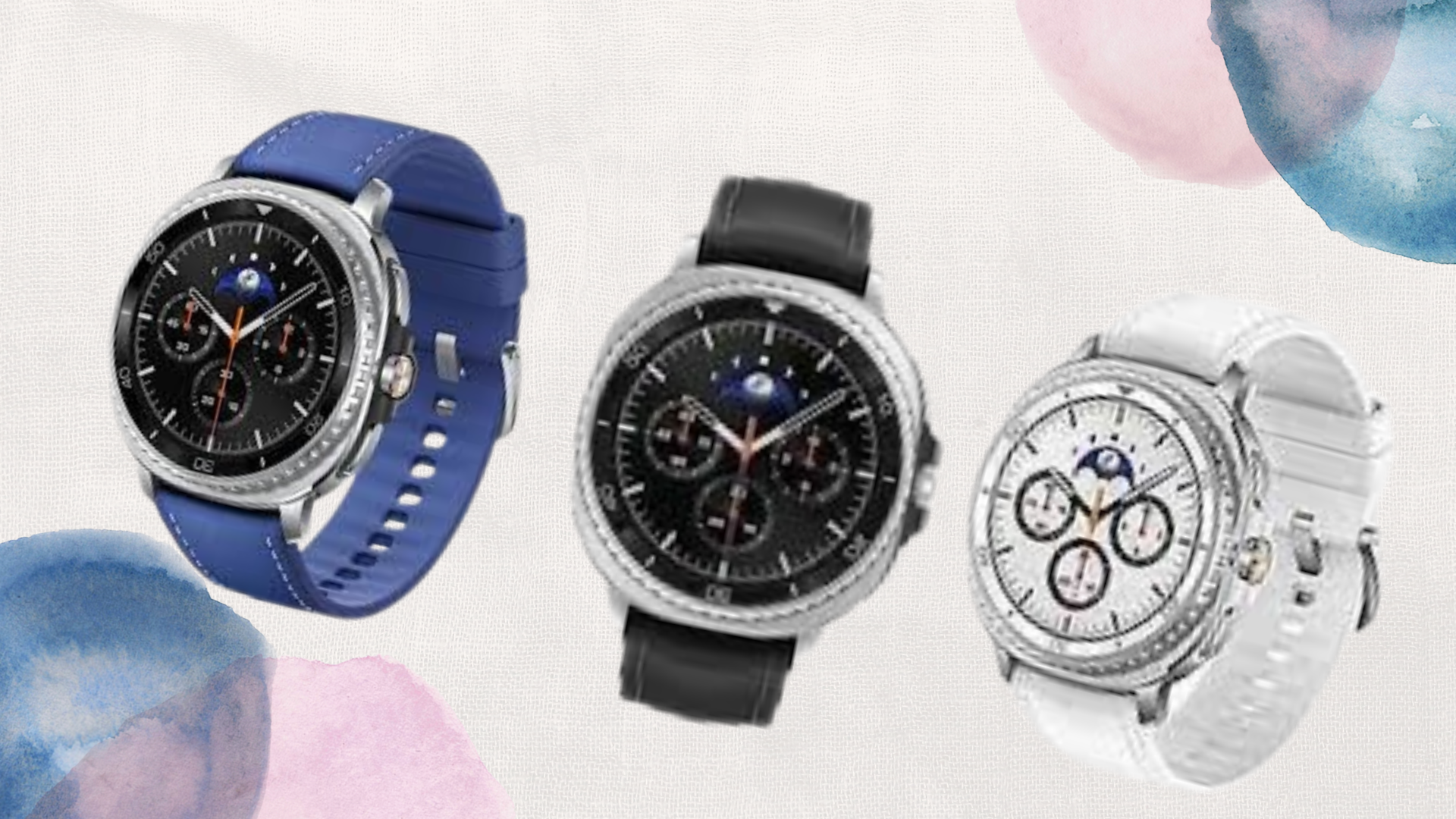
Smartwatches have become more than just regular, boring time telling devices, they’re mini hubs for communication, fitness, and productivity. Among them, Samsung Galaxy Watches stand out for its sleek design, reliable performance, and seamless integration with smartphones. One of the key features that makes them truly useful is the ability to receive and manage alerts directly on your wrist. If you’re new to the Galaxy ecosystem or just got your first Galaxy watch, Setting Up Samsung Galaxy Watch for Alerts and Notifications is one of the first steps you’ll want to master because you might never know when a notification or alert can be deemed important or life saving.
Why Alerts and Notifications Matter
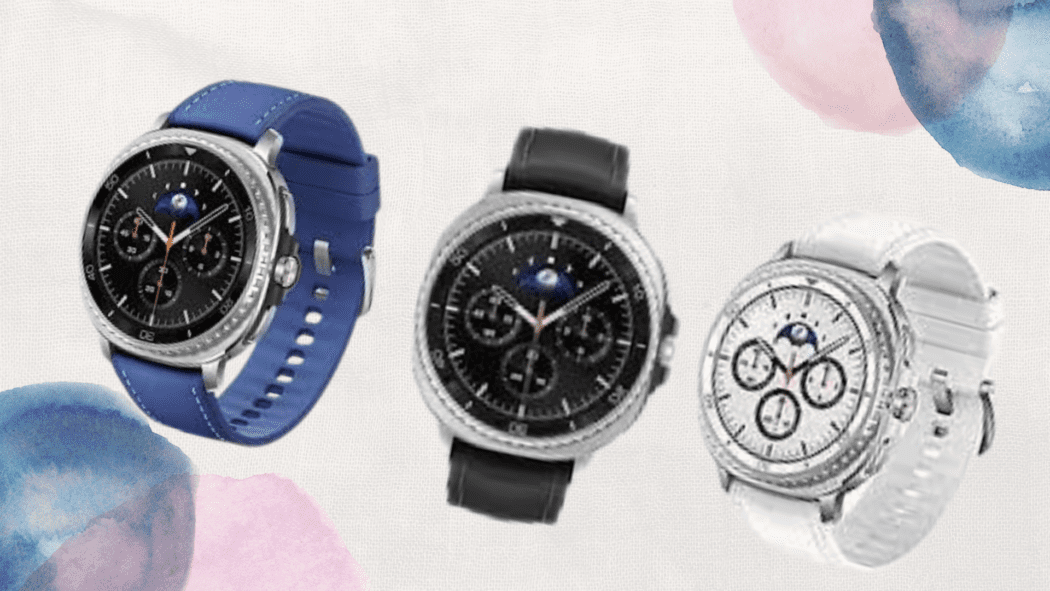
We live in a world full of digital noise, and managing it can be tricky. Constantly pulling out your phone can get distracting, especially when you’re in the gym, at your office, driving, or in class. That’s where your Galaxy Watch comes in. With proper setup, it filters what matters most and ensures you never miss a critical call, email, or reminder. Setting Up Samsung Galaxy Watch for Alerts and Notifications doesn’t just keep you connected, it also helps you stay focused by putting control directly on your wrist.
Step 1: Pairing Your Watch with Your Phone
Before diving into alerts, you have to make sure your Galaxy Watch is properly connected. Install the Galaxy Wearable app on your phone, follow the pairing instructions, and grant necessary permissions. This connection is the foundation for Setting Up Samsung Galaxy Watch for Alerts and Notifications, as it allows your phone to sync notifications directly to the watch.
Step 2: Customizing Notifications from Apps
One of the best parts of Setting Up Samsung Galaxy Watch for Alerts and Notifications is the ability to choose which apps can send alerts to your wrist. Maybe you want to see messages and WhatsApp notifications, but not every random “Hey” or “How you doing” messages. Here’s how: Open the Galaxy Wearable app Go to Notifications Toggle on or off specific apps
This ensures you’re only disturbed by the notifications that matter most.
Step 3: Fine-Tuning Alerts on the Watch
Your Galaxy Watch gives you multiple ways to manage how alerts appear. You can choose between vibrations, sound, or silent alerts depending on the situation. For instance, in meetings, you might prefer a light vibration instead of a loud tone that will make everybody turn towards you. Setting Up Samsung Galaxy Watch for Alerts and Notifications also allows you to adjust notification previews, so you can quickly glance at messages without opening them fully.
Step 4: Using Do Not Disturb and Modes
There are times when you don’t want any interruptions, whether that’s during workouts, sleep, or relaxation. Samsung includes features like Do Not Disturb, Theater Mode, and Bedtime Mode to help you control incoming alerts. These options are crucial when Setting Up Samsung Galaxy Watch for Alerts and Notifications, giving you the flexibility to pause unnecessary notifications without disabling them completely.
Step 5: Syncing with Other Samsung Services
Your Galaxy Watch isn’t just about app alerts; it also integrates with Samsung Health, Calendar, and Reminders. For instance, workout progress, hydration reminders, and event alerts can be pushed to your wrist automatically. This makes Setting Up Samsung Galaxy Watch for Alerts and Notifications more than just about communication, it transforms the watch into a complete lifestyle assistant.
Common Mistakes You Need to Avoid
When working on Setting Up Samsung Galaxy Watch for Alerts and Notifications, many users either allow too many apps or block the wrong ones. This leads to unnecessary distractions or missed important alerts. Another mistake I had to learn is forgetting to grant permission during setup, if your phone restricts background activity, some notifications might never reach your watch. Always double-check your phone’s notification access settings within the Galaxy Wearable app.
Conclusion
At the end of the day, your Galaxy Watch is only as useful as the notifications it delivers. By carefully managing them, you strike the perfect balance between staying connected and avoiding distraction. Setting Up Samsung Galaxy Watch for Alerts and Notifications is simple but powerful, it ensures that you never miss what’s important while giving you control over your digital environment. Whether it’s emails, fitness goals, or calendar reminders, your Samsung Galaxy Watch is designed to keep you on track without overwhelming you. Take the time to set it up properly, and you’ll find it quickly becomes an extension of your phone, and of your daily life.
When you purchase through links on our site, we may earn an affiliate commission which helps in keeping this website running. Here’s how it works.
Use the Code ref-09ngex to get 5% off from Samsung

About the Author: Ikhide Uanseoje
Welcome to SamUniverse! My name is Ikhide Uanseoje, the mind behind this website dedicated to everything Samsung. As a passionate tech enthusiast and lover, I specialize in delivering the latest news, in-depth reviews, and helpful guides about Samsung products, from smartphones and wearables to laptops and accessories.
Born and raised in Nigeria, I’ve always had a fascination with cutting-edge technology and how it shapes our lives. This passion led me to create SamUniverse, a platform where Samsung fans and tech lovers can explore innovations, tips, and updates that truly matter.
When I’m not writing, you’ll find me exploring new tech trends, brainstorming ideas for future posts, or working on ways to make this website your go-to resource for all things Samsung.
Stay tuned to SamUniverse as we uncover the best Samsung has to offer!