The AI Architect: Mastering Professional Correspondence with Galaxy AI in One UI 8.5

The year 2026 has marked a definitive shift in the landscape of mobile productivity. With the release of One UI 8.5, Samsung has moved beyond simple generative text and into the realm of “Contextual Intelligence.” At the heart of this revolution is Galaxy AI, now powered by the Snapdragon 8 Elite Gen 5’s dedicated NPU, making it faster and more intuitive than ever before.
For the modern professional, the smartphone is no longer just a device for checking emails; it is the primary tool for crafting them. Whether you are a CEO managing a global team or a freelancer pitching a new client, the ability to communicate with precision, tone, and speed is paramount. This guide explores how to master the deep integration of Galaxy AI within One UI 8.5 to transform your email workflow into a streamlined, professional powerhouse.
1. The Evolution of Writing Assistant 3.0
In previous iterations, Galaxy AI’s writing tools were largely reactive. You wrote a draft, and the AI offered to fix the grammar or change the tone. In One UI 8.5, the Writing Assistant has evolved into a proactive collaborator.
Integrated directly into the Samsung Keyboard, the Writing Assistant now utilizes a “Semantic Analysis Engine.” It doesn’t just look at the words you are typing; it understands the intent behind them. When you open a new compose window in Gmail, Outlook, or Samsung Email, the AI is already preparing to assist based on your past correspondence patterns and the specific app you are using.
Key Enhancements in One UI 8.5:
- Zero-Shot Drafting: Generate a full, professional email from a single-sentence prompt.
- Thread Awareness: The AI scans the last five messages in a thread to ensure your reply is contextually accurate.
- Nuanced Tone Controls: Five distinct professional levels, ranging from “Polite Inquiry” to “Executive Directive.”
- Real-Time Fact Checking: The AI cross-references your claims with your calendar and files to ensure accuracy.
2. Setting Up Your Professional AI Profile
To get the most out of Galaxy AI, you must first calibrate it to your professional identity. One UI 8.5 introduces Personalized AI Profiles found under Settings > Advanced Features > Galaxy AI > Writing Assistant.
By setting up your profile, you can define your “Standard Professional Voice.” You can upload a few samples of your best writing, and the AI will analyze your syntax, preferred vocabulary, and even your use of emojis (or lack thereof) to ensure that the generated text sounds like you, only more polished. This prevents the “uncanny valley” effect where an AI-generated email sounds too robotic or overly formal.
3. The “Deep Reply” System: Conquering Inbox Overload
The most significant time-sink for any professional is the “Reply-All” chain. One UI 8.5 introduces Deep Reply, a feature that lives within the notification shade and the email app itself.
How to Use Deep Reply:
- Summarize First: Before replying, tap the Galaxy AI icon at the top of a long email thread. The AI will provide a bulleted summary of the “Asks,” “Deadlines,” and “Decisions Made.”
- Generate Response: Tap the “Draft Reply” button.
- Choose Your Angle: The AI will offer three distinct paths: Accept/Agree, Decline/Pushback, or Seek Clarification.
- Refine: Once the draft is generated, use the Composer Overlay to tweak specific details.
Because the AI is thread-aware, it will automatically reference previous points made by colleagues, such as: “As Sarah mentioned on Tuesday regarding the budget, I agree that we should pivot…” This level of detail makes it nearly impossible for the recipient to know the email was AI-assisted.
4. Mastering Tone Transformation
One UI 8.5 has refined its “Style” feature into a high-fidelity Tone Transformer. In a professional setting, the wrong tone can be disastrous. A message to a subordinate requires a different touch than a message to a Board of Directors.
The Five Professional Tones:
- Executive: Concise, authoritative, and focused on high-level outcomes. Ideal for decision-making.
- Persuasive: Uses rhetorical structures to sell an idea or request a favor. Perfect for sales or pitches.
- Collaborative: Warm, inclusive, and heavy on “we/us” language. Best for internal team projects.
- Formal/Legal: Strictly adheres to professional etiquette, avoids contractions, and uses precise terminology.
- Concise: Strips away all fluff for “Slack-style” emails that get straight to the point.
To use this, simply highlight your “rough” draft and tap the Sparkle Icon on the keyboard. Selecting “Style” will show you your message in all five tones simultaneously, allowing you to pick the one that fits the current power dynamic.
5. Global Communication: Live Translation in Email
For those working in international markets, the Interpreter Mode has been integrated into the email composer. This isn’t your standard Google Translate from five years ago. This is Neural Machine Translation (NMT).
If you are writing to a client in Tokyo, you can type in English, and Galaxy AI will translate it into formal Japanese (Keigo), ensuring you respect cultural nuances. In One UI 8.5, the AI also provides a “Reverse Translation” preview, showing you exactly how your translated words would sound if converted back to English. This acts as a safety net to ensure your meaning hasn’t been lost in translation.
6. The “Smart Signature” and Attachment Manager
Professionalism is in the details. Galaxy AI now manages your signatures and attachments with eerie efficiency.
- Dynamic Signatures: The AI can change your email signature based on the recipient. If the recipient is internal, it might use a simple “Best, [Name].” If the recipient is external, it adds your LinkedIn profile, company logo, and current project link.
- Attachment Reminders: We have all sent the “Please see attached” email without the actual attachment. Galaxy AI in One UI 8.5 detects the intent to attach a file and prompts a file-picker if you attempt to hit send without one.
- File Summarization for Recipients: If you are sending a 50-page PDF, you can ask Galaxy AI to “Attach and Summarize.” It will generate a 3-sentence summary of the document at the bottom of your email, saving your recipient valuable time.
7. Privacy and the “On-Device” Mandate
A major concern with AI in 2026 is data privacy—especially regarding sensitive corporate emails. Samsung addresses this with Knox Matrix and the Private Compute Core.
Within the Galaxy AI settings, you can toggle “Process Data On-Device Only.” While this slightly limits the AI’s “Creative” flair (since it can’t tap into massive cloud-based LLMs), it ensures that your professional secrets, trade data, and personal information never leave the S26 Ultra. For most professional email tasks, the on-device NPU is more than capable of handling tone shifts and drafting.
8. Workflow Integration: Circle to Search + Email
The synergy between Circle to Search and email drafting is a highlight of One UI 8.5. Imagine you are browsing a competitor’s website or looking at a complex chart in a PDF.
- Long-press the home button to activate Circle to Search.
- Circle the data or text you need.
- Tap “Send to Compose.”
- Galaxy AI will automatically open your email app, draft a message, and incorporate that data into a coherent professional argument or summary.
This eliminates the “Copy-Paste-Reformat” cycle that has plagued mobile productivity for over a decade.
9. Dealing with “Difficult” Emails: The AI Mediator
Sometimes, you need to write an email while you are frustrated. We’ve all been there. One UI 8.5 includes a “Professional Filter.” If the AI detects aggressive language, “passive-aggressive” phrasing, or unprofessional slang, it will flag the text with a small red underline.
Tapping the underline allows the AI to “Professionalize” the sentiment. It turns “This is the third time you’ve missed the deadline and it’s ruining the project” into “I would like to discuss the current timeline, as the recent delays are beginning to impact our collective milestones. How can we get back on track?” This feature alone is a career-saver.
10. Voice-to-Professional: The Evolved Bixby/Dictation
Dictation has finally reached a professional standard in 2026. Using the STT (Speech-to-Text) 2.0 engine, you can speak your thoughts in a rambling, “stream of consciousness” way while walking between meetings.
When you finish, you don’t just get a transcript. You tap “Format as Professional Email.” Galaxy AI will strip out the “umms,” “ahhs,” and repetitions, organizing your spoken thoughts into a structured email with a Subject Line, Salutation, Body, and Call to Action.
11. Tips for Mastering the AI Workflow
To truly master professional emails in One UI 8.5, keep these tips in mind:
- Prompt Engineering Matters: Instead of telling the AI “Write an email about the meeting,” try “Draft a follow-up to today’s strategy session, thanking the team for their input and listing the three action items we agreed on.”
- Use the “Regenerate” Button: If the first draft isn’t perfect, don’t edit it manually yet. Tap the regenerate icon. The AI learns from your rejection and often provides a much better second option.
- Keyboard Shortcuts: Map the Galaxy AI button to a gesture on your S-Pen. Being able to highlight text and instantly “Formalize” it with a click of the pen is a game-changer for speed.
Conclusion: The Future of Your Inbox
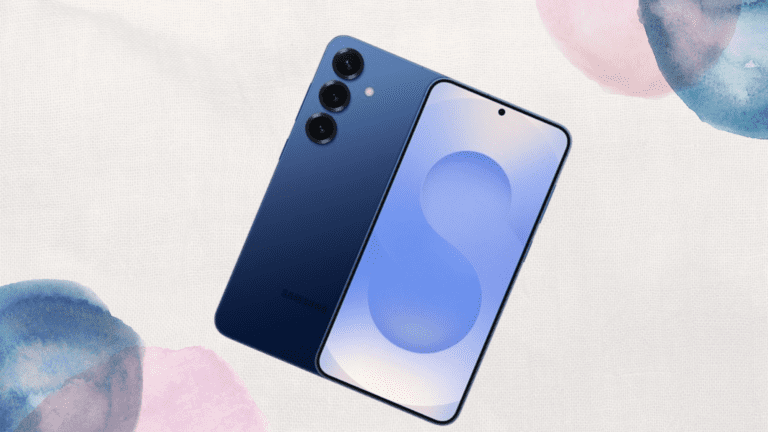
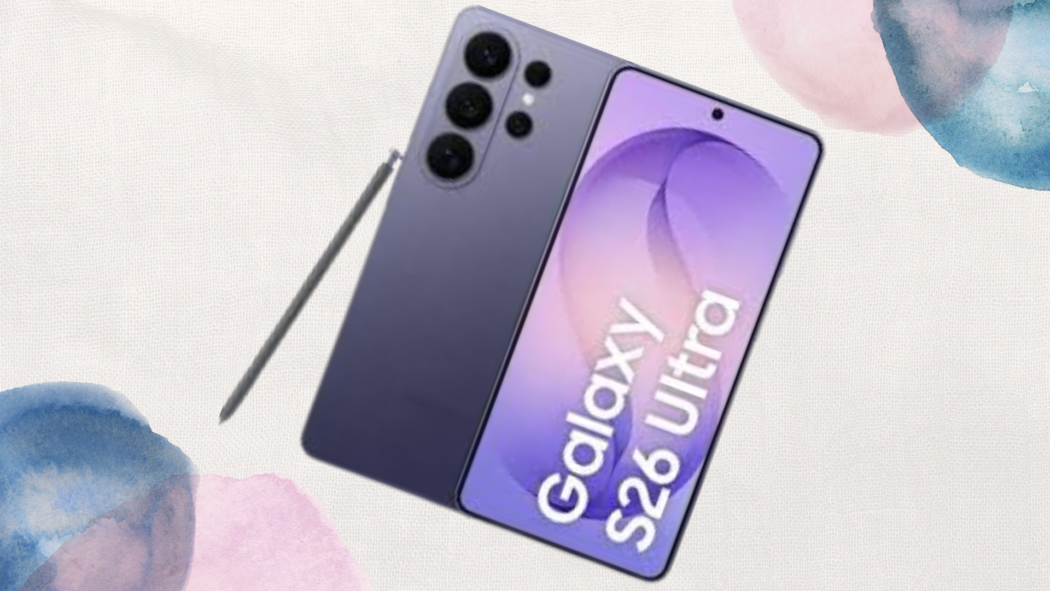
One UI 8.5 and Galaxy AI have turned the Galaxy S26 Ultra into a digital Chief of Staff. By leveraging these tools, you aren’t just writing emails faster; you are writing better emails. You are communicating with more clarity, maintaining better professional relationships, and reclaiming hours of your day that were previously spent staring at a blinking cursor.
The key to mastering this is balance. Use the AI to handle the structure, the tone-shifting, and the summarization, but always keep your “Personalized AI Profile” active to ensure your unique voice is the one being heard. In the professional world of 2026, the most successful people aren’t those who do everything themselves—they are those who know how to direct their AI tools with the most skill.
Open your Samsung Keyboard, tap that sparkle icon, and start leading the conversation.
When you purchase through links on our site, we may earn an affiliate commission which helps in keeping this website running. Here’s how it works.
Use the Code ref-09ngex to get 5% off from Samsung

About the Author: Ikhide Uanseoje
Ikhide is a Lagos-based tech creator and the founder of Sam-Universe. He is a Samsung specialist focused on real-world utility, from professional AMV editing workflows to mobile productivity. Follow his journey as he bridges the gap between premium tech and the hustle of student life.