Tips for Maximizing Battery Life on Samsung Phone And Tablets

There’s nothing more frustrating than your Samsung phone or tablet running out of power when you need it most, whether you’re on an important call, streaming your favorite show, or navigating to a new location. While Samsung devices are known for their powerful batteries, even the best battery can drain quickly if not used wisely.
The good news? With a few smart adjustments to your settings and daily habits, you can significantly extend your device’s battery life. In this guide, we’ll share the best tips to help you get the most out of every charge and keep your Samsung phone or tablet running longer throughout the day.
Understanding Battery Usage on Samsung Devices
Before you can make your Samsung phone or tablet last longer, it’s important to understand how its battery is being used. Every activity, from normal browsing the internet to watching videos, it consumes power, but some tasks drain your battery much faster than others.
High screen brightness, constant background app activity, frequent notifications, and always on connectivity features like your Wi-Fi or Bluetooth are some of the biggest culprits. Streaming high quality videos, gaming, and running location services also demand a lot of energy.
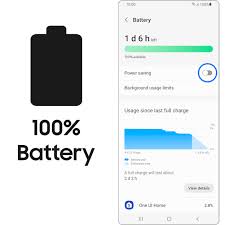
Samsung makes it easy to monitor what’s using your battery. Simply go to your Settings > Battery and device care > Battery > Battery usage. Here, you’ll see a detailed breakdown of which apps and features consume the most power. This insight helps you identify and manage the activities that are draining your battery the fastest.
Best Tips For Maximizing Battery Life
Enable Power Saving Mode
Samsung devices come with built in battery optimization tools that can make a big difference in how long your device lasts on a single charge. The Power Saving Mode reduces background activity, lowers screen brightness, limits CPU performance, and restricts certain visual effects to conserve power.
You can turn it on by going to Settings > Battery and device care > Battery > Power saving and toggling it on. This mode is perfect for extending battery life when you know you won’t be able to charge for a while.
For even more savings, Samsung offers Ultra Power Saving Mode (also called Emergency mode on some devices). This drastically limits your device to essential apps and switches the display to a simplified interface, helping your phone or tablet last much longer when the battery is critically low.
Optimize Screen Settings
Your screen is one of the biggest battery drainers on any Samsung phone or tablet, especially when it’s running at maximum brightness or high refresh rates. Adjusting a few display settings can help you save significant power.
Lower the brightness: Keep your brightness as low as comfortably possible. You can also enable Adaptive brightness so your device automatically adjusts based on your surroundings.
Reduce screen timeout: Go to Settings > Display > Screen timeout and set it to 30 seconds or 1 minute so your screen turns off quickly when not in use.
Using Dark Mode: Samsung’s AMOLED displays consume less power in Dark Mode because fewer pixels need to be lit. Enable it in Settings > Display > Dark mode.
By fine tuning these display settings, you can prevent your screen from draining your battery unnecessarily while still enjoying a clear, comfortable viewing experience.
Manage Background Apps
Even when you’re not actively using them, many apps continue to run in the background, this consumes battery power and mobile data. On Samsung devices, managing these apps can make a noticeable difference in battery life.
Put unused apps to sleep: Go to Settings > Battery and device care > Battery > Background usage limits and enable Put unused apps to sleep. This prevents apps you rarely use from running in the background.
Manually close power-hungry apps: From the Recent apps screen, swipe away apps you don’t need open.
Restrict background activity: In Settings > Apps, select an app you want to limit, tap Battery, and choose Restricted to stop it from using battery in the background.
By reducing background activity, you free up system resources and ensure your battery is reserved for the tasks you actually care about.
Turn Off Unused Connectivity Features
Wireless connections like Wi-Fi, Bluetooth, GPS, and mobile data constantly search for signals, which can quietly drain your battery even when you’re not using them. Turning them off when they’re not needed can help conserve power.
Wi-Fi & Mobile Data: If you’re not connected to a network or don’t need internet access, switch them off from the Quick Settings panel.
Bluetooth: Turn off Bluetooth when you’re not using wireless earbuds, speakers, or other devices.
Location Services (GPS): Go to Settings > Location and disable it when not in use, or set it to “Battery saving” mode.
Airplane Mode: When you don’t need any connectivity, for example, during flights, while sleeping, or in areas with no signal, enable Airplane Mode to stop your device from constantly searching for networks.
These small changes can add up to hours of extra battery life, especially if you spend long periods away from a charger.
Update Software Regularly
Keeping your Samsung phone or tablet updated is not just about getting new features, it can also improve battery efficiency. Software updates often include optimizations that make your device run more smoothly, fix bugs that may cause excessive battery drain, and enhance overall performance.
Update system software: Go to Settings > Software update > Download and install to check for and install the latest version.
Update apps: Open the Galaxy Store and Google Play Store, then update all your apps. Updated apps tend to run more efficiently and use less power.
Enable auto-updates: Turning on automatic updates ensures you always have the latest optimizations without having to remember to check manually.
By staying up to date, you help your device operate at its most efficient level, reducing unnecessary battery drain.
Use Battery Protection Features
Samsung includes built-in battery care tools designed to protect your device’s battery health over the long term. One of the most useful is Protect Battery, which limits the maximum charge to 85%. This helps reduce wear and tear on the battery and can extend its overall lifespan.
Enable Protect Battery: To enable protect battery, go to Settings > Battery and device care > Battery > More battery settings and toggle on Protect Battery.
Adaptive Battery: This is found in Settings > Battery and device care > Battery > More battery settings, this feature learns your usage patterns and limits power to apps you rarely use.
Wireless PowerShare caution: While convenient, sharing battery with other devices can drain your battery quickly so only use it’s when necessary.
By using these features, you not only save power day-to-day but also help ensure your Samsung phone or tablet maintains healthy battery performance for years to come.
Extra Tips for Long Term Battery Health
Beyond daily battery saving habits, taking good care of your Samsung device’s battery can keep it performing well for years. Here are a few extra tips to protect your battery’s long term health:
Avoid extreme temperatures: You should do your best to keep your device from extreme temperatures, both high heat and freezing cold can damage battery cells. Keep your device away from direct sunlight, car dashboards, or icy environments for long periods.
Use original or certified chargers: Cheap, uncertified chargers can deliver inconsistent power, which may shorten your battery’s lifespan or even damage your device.
Don’t let the battery hit 0% too often: Lithium-ion batteries last longer when kept between 20% and 80% charge.
Remove bulky cases while charging: Some cases trap heat during charging, which can degrade battery health over time.
Charge in short bursts: Instead of charging from 0% to 100% in one go every time, top up your battery throughout the day when possible.
By combining these habits with the earlier battery saving tips, you’ll not only get more hours per charge but also keep your Samsung phone or tablet’s battery strong in the long run.
FAQ
Q: Does fast charging harm Samsung phone or tablet batteries?
A: Samsung’s fast charging technology is designed to be safe for everyday use. Occasional fast charging won’t significantly damage your battery. However, relying on it all the time can generate more heat, which may slightly shorten battery lifespan over years of use. For the best long-term health, use regular charging when you’re not in a hurry and reserve fast charging for when you need a quick power boost.
Conclusion
Maximizing the battery life of your Samsung phone or tablet doesn’t require complicated tricks, just a few smart habits and the right settings. From enabling Power Saving Mode to fine tuning your screen settings, managing background apps, and taking advantage of battery protection features, each step can add valuable hours to your daily usage.
More importantly, caring for your battery over time means your device will perform better and last longer, saving you from early battery replacements. Start by adopting one or two of these tips today, and you’ll quickly notice the difference in how long your Samsung device keeps going between charges.
When you purchase through links on our site, we may earn an affiliate commission which helps in keeping this website running. Here’s how it works.
Use the Code ref-09ngex to get 5% off from Samsung

About the Author: Ikhide Uanseoje
Welcome to SamUniverse! My name is Ikhide Uanseoje, the mind behind this website dedicated to everything Samsung. As a passionate tech enthusiast and lover, I specialize in delivering the latest news, in-depth reviews, and helpful guides about Samsung products, from smartphones and wearables to laptops and accessories.
Born and raised in Nigeria, I’ve always had a fascination with cutting-edge technology and how it shapes our lives. This passion led me to create SamUniverse, a platform where Samsung fans and tech lovers can explore innovations, tips, and updates that truly matter.
When I’m not writing, you’ll find me exploring new tech trends, brainstorming ideas for future posts, or working on ways to make this website your go-to resource for all things Samsung.
Stay tuned to SamUniverse as we uncover the best Samsung has to offer!