Top 5 Edge Lighting Effects for Samsung Notifications

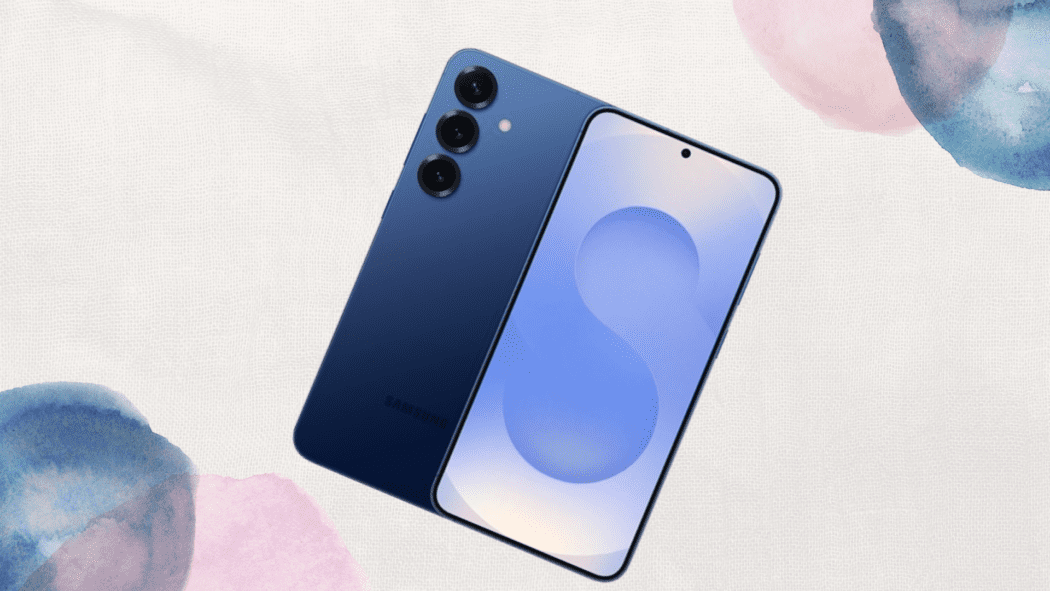
Samsung’s Edge Lighting feature turns your Galaxy phone’s screen edges into a glowing notification alert, adding a stylish visual cue when your messages, calls, or your app alerts arrive. While many users stick to the default glow, Samsung offers a variety of Edge Lighting effects that can be customized to match your personality, enhance visibility, or just make notifications more fun. This article highlights the best Edge Lighting effects and tips for getting the most out of this feature.
Why Use Edge Lighting
Edge Lighting is not just about aesthetics; it also improves notification visibility, especially when your phone is face-down or in a pocket. It’s a subtle yet effective way to know when something important arrives without needing to unlock your phone or turn on the full display.
With One UI updates, Samsung has expanded Edge Lighting to include different colors, shapes, and animations, so you can tailor notifications for specific apps or contacts.
Top Edge Lighting Effects to Try
1. Glow
The Glow effect is the most popular for everyday use. It produces a soft, pulsing light along the edges of the screen whenever a notification arrives. You can customize the color, duration, and transparency, making it subtle enough for work but noticeable enough to catch your attention.
2. Bubble
For a playful, dynamic look, Bubble sends animated circles across the screen edges. This effect works best for social apps like WhatsApp, Messenger, or Instagram, as it adds a fun, interactive feel to notifications.
3. Multicolor Pulse
If you want something vibrant, the Multicolor Pulse effect cycles through several colors while lighting the edges. It’s eye-catching, perfect for when your phone is on a table or nightstand, and can be assigned to high-priority notifications only.
4. Edge Line
The Edge Line effect gives a clean, modern look with a thin streak of light tracing the screen edges. It’s professional enough for work environments while still being visually noticeable. You can choose colors to differentiate types of notifications, like blue for emails and green for messages.
5. Sparkle
The Sparkle effect combines movement and shimmer, creating tiny bursts of light along the edges whenever a notification comes in. Ideal for personal messages or social apps, it’s playful without being overwhelming.
How to Customize Edge Lighting
- Go to Settings > Notifications > Brief pop-up settings > Edge lighting.
- Tap Style to choose from Glow, Bubble, Multicolor Pulse, Edge Line, or Sparkle.
- Customize color, width, duration, and transparency.
- Assign specific effects to individual apps or contacts for a personalized experience.
Pro Tip: You can assign more noticeable effects for urgent notifications (like calls or work emails) and subtle ones for casual apps. This prevents notification fatigue while still keeping you informed.
Troubleshooting Edge Lighting When It Doesn’t Work
Sometimes Samsung’s Edge Lighting may stop appearing for notifications, even when it is enabled. In most cases, the issue is caused by notification settings, power restrictions, or lock-screen configuration rather than a real software fault.
- Check notification permissions Go to Settings → Notifications → App notifications and confirm that the specific app is allowed to send alerts. If notifications are blocked, Edge Lighting cannot trigger.
- Make sure Brief pop-up style is selected Edge Lighting only works with the Brief notification style. Navigate to Settings → Notifications → Notification pop-up style and choose Brief instead of Detailed.
- Enable Edge Lighting for the lock screen Open Settings → Notifications → Brief pop-up settings → Edge lighting and confirm it is allowed on the lock screen. If lock-screen notifications are hidden, the lighting effect will not show.
- Disable battery restrictions for key apps Samsung’s power saving can stop background alerts. Go to Settings → Battery → Background usage limits, remove important apps from Sleeping or Deep sleeping lists, and allow unrestricted activity where necessary.
- Check Do Not Disturb or Focus modes If Do Not Disturb or a scheduled Mode/Routine is active, visual alerts like Edge Lighting may be suppressed. Turn them off temporarily to test.
- Restart or update the device A quick restart or installing the latest One UI update often fixes minor glitches affecting notification animations.
If Edge Lighting still fails after these checks, resetting notification settings usually restores normal behavior.
Edge Lighting vs Always-On Display Notifications
Both Edge Lighting and Always-On Display (AOD) help you notice alerts without fully waking your phone, but they serve slightly different purposes.
Edge Lighting focuses on instant visual alerts. When a message or call arrives, the screen edges briefly glow with color and animation. This makes it easy to notice notifications from across the room or when the phone is face-down. The effect disappears after a few seconds, keeping distractions minimal and power usage low.
Always-On Display notifications are designed for persistent visibility. Instead of a quick animation, AOD keeps icons, time, and notification indicators visible on a dim screen until you interact with the device. This is useful when you want to check missed alerts at a glance without touching the phone.
Key practical differences
Duration: Edge Lighting is temporary; AOD remains visible continuously.
Attention level: Edge Lighting is more eye-catching; AOD is subtle and static.
Battery impact: Both are optimized, but AOD uses slightly more power because it stays active.
Best use case:
Edge Lighting → noticing new alerts instantly
AOD → checking missed notifications later
Many Samsung users combine both features: Edge Lighting for the initial alert and Always-On Display for ongoing reminder icons. This pairing offers the best balance between visibility, convenience, and battery efficiency.
FAQ
Q1: Can Edge Lighting work with third-party apps?
Yes. Most popular apps like WhatsApp, Messenger, Instagram, Gmail, and Slack are compatible. You may need to enable notifications for each app in Settings > Notifications.
Q2: Does Edge Lighting drain battery?
Edge Lighting uses minimal power because it only activates briefly when a notification arrives. Using complex animations frequently may slightly affect battery life, but the impact is negligible for daily use.
Q3: Can I change colors for different contacts or apps?
Absolutely. Samsung allows assigning custom colors and effects to individual apps or even specific contacts, which helps you quickly identify who’s messaging without unlocking your phone.
Q4: What if Edge Lighting doesn’t show on my lock screen?
Make sure Edge Lighting on lock screen is enabled in Settings. Also, check that notifications are set to appear on the lock screen for the relevant apps.
Q5: Can I combine Edge Lighting with Always-On Display?
Yes. Edge Lighting works alongside Always-On Display (AOD), allowing your phone to show subtle light effects without fully waking the screen. This is useful for night-time notifications or when your phone is face-down.
Conclusion
Samsung’s Edge Lighting transforms ordinary notifications into a visually appealing and functional feature. Whether you prefer subtle glows for work, vibrant multicolor pulses for social apps, or sparkling animations for fun, there’s an effect to suit every style. By customizing effects, colors, and app assignments, you can make your Galaxy phone notifications both practical and aesthetically enjoyable, ensuring you never miss an important alert while adding a personal touch to your device.
When you purchase through links on our site, we may earn an affiliate commission which helps in keeping this website running. Here’s how it works.
Use the Code ref-09ngex to get 5% off from Samsung

About the Author: Ikhide Uanseoje
Ikhide is a Lagos-based tech creator and the founder of Sam-Universe. He is a Samsung specialist focused on real-world utility, from professional AMV editing workflows to mobile productivity. Follow his journey as he bridges the gap between premium tech and the hustle of student life.