Forgot Your Google Account? 3 Legal Ways to Unlock Samsung FRP in 2026

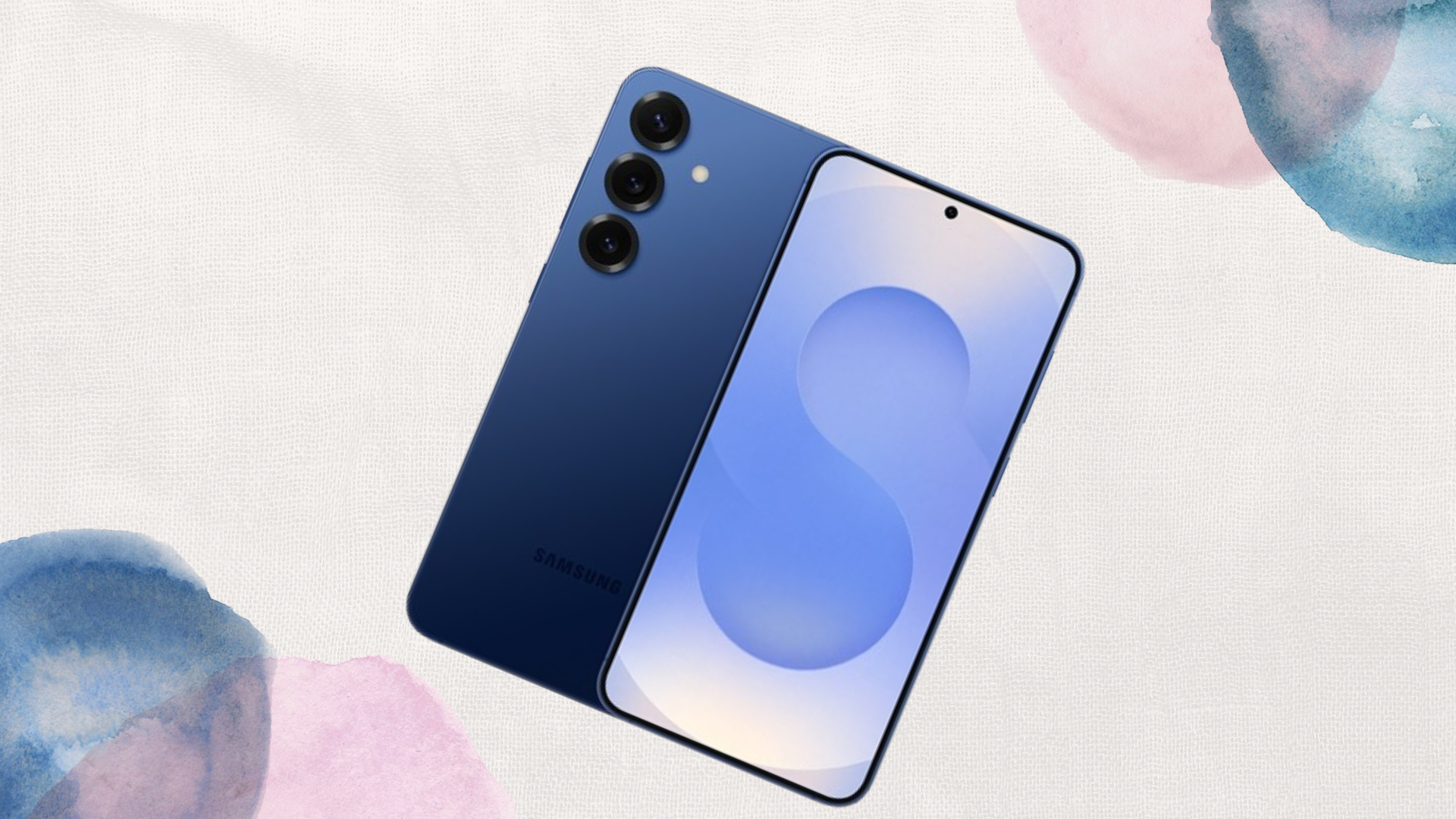
You’ve just performed a factory reset on your Galaxy S26 Ultra, expecting that “fresh out of the box” speed. Instead, you’re staring at a screen that says: “This device was reset. To continue, sign in with a Google Account that was previously synced on this device.”
Your heart sinks. You’ve forgotten the password, or perhaps the email address itself. This is FRP (Factory Reset Protection), a security feature introduced years ago that has become incredibly sophisticated by 2026. It is a digital “bouncer” designed to make a stolen phone useless to a thief. But when the bouncer won’t let the owner in, it feels like your $1,300 flagship has turned into an expensive paperweight.
At Sam-Universe, we see this daily. While the internet is full of “shady” bypass tools that often come bundled with malware, there are only three legal and safe ways to get back into your device in 2026 without risking your data or your hardware’s integrity.
1. The “Account Recovery” Path (The Self-Service Method)
Most users assume that if they don’t know the password, the account is lost. In 2026, Google’s recovery AI is actually much more intuitive than it used to be. Before you panic, try the official “Forgot Email” or “Forgot Password” flow from a secondary device (like a laptop or a friend’s phone).
The 2026 Recovery Flow:
- Verification via Trusted Devices: If you are still logged into your Google account on an iPad, a Windows PC, or even a Galaxy Watch 8, Google can send a “Push-to-Verify” prompt to that device.
- eSIM Verification: If your S26 has an active eSIM, Google can often send a recovery code directly to the number associated with the device, even if you are stuck at the FRP screen.
- Passkeys: If you set up a Passkey (the passwordless standard of 2026) on your account, you can often use your fingerprint or face ID on another trusted device to reset your credentials instantly.
Why this is the best way: It keeps your Google account intact, which means all your Photos, Drive files, and “Samsung Cloud” backups will sync back to the phone the moment you get in.
2. The “Samsung SmartThings Find” Remote Unlock
Many users forget that their Samsung Account is often a separate “key” to the phone. If you had SmartThings Find (formerly Find My Mobile) enabled on your device before the reset, you are in luck.
Samsung’s 2026 ecosystem is highly interconnected. As long as the phone has a Wi-Fi or LTE connection (which you can enable on the setup screen), you can unlock it remotely.
How to do it:
- Go to the SmartThings Find website on another device.
- Log in with your Samsung Account credentials (which are often different from your Google credentials).
- Select your locked device from the list.
- Choose the “Unlock” option. This will remotely wipe the screen lock and, in many cases, satisfy the FRP requirement by proving you are the verified owner of the Samsung ID tied to the hardware.
Pro Tip: This is why we always recommend setting up a Samsung Account during the initial unboxing. It’s your “Master Key” when Google locks the front door.
3. The “Paperwork” Solution (Official Samsung Support)
If you’ve exhausted all digital options and you truly cannot access your Google or Samsung accounts, it is time to go to the source. Samsung is legally obligated to help the rightful owner of a device, but they have a very high bar for proof.
In 2026, you can initiate an “FRP Unlock Request” through the Samsung Members app on another device or by visiting a Samsung Experience Store.
What you will need:
- Original Proof of Purchase: A digital or paper receipt showing the IMEI or Serial Number of the device.
- Identity Verification: Valid government ID that matches the name on the receipt.
- The Device: Physical possession of the phone.
Samsung technicians use a proprietary tool (internally known as GDMS) to flash a specialized firmware that clears the FRP flag at the motherboard level. This is the only “hard reset” for FRP that is guaranteed not to trip your Knox Security or void your warranty.
⚠️ A Warning: Avoiding the “Bypass Tool” Trap
If you search for “FRP Bypass” on YouTube, you will see thousands of videos promising “One-Click” software. Avoid these at all costs.
By 2026, Samsung’s Auto Blocker 3.0 and Knox Matrix security are so advanced that most 3rd-party bypass tools have to use “Exploits” that leave your phone vulnerable to hackers. Many of these tools are actually trojans designed to steal your banking data the moment you finally get back into the phone.
Furthermore, using unauthorized software can “Trip Knox,” which permanently disables Samsung Pay, Samsung Pass, and Secure Folder. Once Knox is tripped, your phone’s resale value drops by 50% instantly.
Final Verdict
Getting stuck behind an FRP lock is a massive headache, but it’s a sign that your phone’s security is doing exactly what it was designed to do: protecting your data.
Start with the Google Account Recovery tool, move to SmartThings Find, and if all else fails, take your receipt to a Samsung Service Center. It might take a bit more time than a “shady” download, but it ensures your Galaxy S26 remains a secure, high-performing “Ferrari” and not a compromised brick.
Would you like me to help you draft the next article on your list, perhaps focusing on the Galaxy S27 Ultra “Under-Display” camera leaks to capture that early-bird traffic?
When you purchase through links on our site, we may earn an affiliate commission which helps in keeping this website running. Here’s how it works.
Use the Code ref-09ngex to get 5% off from Samsung

About the Author: Ikhide Uanseoje
Welcome to SamUniverse! My name is Ikhide Uanseoje, the mind behind this website dedicated to everything Samsung. As a passionate tech enthusiast and lover, I specialize in delivering the latest news, in-depth reviews, and helpful guides about Samsung products, from smartphones and wearables to laptops and accessories.
Born and raised in Nigeria, I’ve always had a fascination with cutting-edge technology and how it shapes our lives. This passion led me to create SamUniverse, a platform where Samsung fans and tech lovers can explore innovations, tips, and updates that truly matter.
When I’m not writing, you’ll find me exploring new tech trends, brainstorming ideas for future posts, or working on ways to make this website your go-to resource for all things Samsung.
Stay tuned to SamUniverse as we uncover the best Samsung has to offer!