Why is my Samsung software update taking so long? 5 Fixes for One UI

When you purchase through links on our site, we may earn an affiliate commission which helps in keeping this website running. Here’s how it works.
Use the Code ref-09ngex to get 5% off from Samsung
I’m sure we’ve all seen the notification. The new version of One UI is finally here, promising sleeker animations, better battery life, and the latest security patches. You tap “Download,” expecting it to be up and running in ten minutes or less, but an hour passes by, and the progress bar has barely moved. You find yourself asking: “Why is my Samsung software update taking so long?”
A hanging or slow update is one of the most common complaints among Galaxy users, and I personally have experienced this frustration more times than I can count. Whether you are using the latest S26 Ultra or a reliable A-series device, the “Downloading updates…” screen can feel like a digital prison. While it’s easy to blame your ISP or Samsung’s servers, the bottleneck is often a combination of hidden system settings, cached data conflicts, or just hardware limitations.
In this comprehensive guide, I’m going to break down exactly why your Samsung software update is taking so long and provide five proven methods that I and others have used to slash your download times and get your phone updated safely.
1. Understanding What Causes The Download Speed To Slow
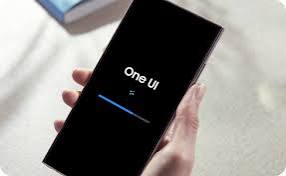
As we move into 2026, the complexity of mobile operating systems has increased significantly. A standard feature update can now range from 2GB to 5GB. If you notice that the One UI 8 download speed is crawling on your device, the first thing you might want to consider is server congestion.
When Samsung releases a major update, millions of user devices ping their servers simultaneously. Think of it like a ten-lane highway suddenly trying to fit a billion cars. Even with Samsung’s global Content Delivery Network (CDN), the sheer volume can throttle speeds. Furthermore, your ISP might detect a massive, sustained file download and “deprioritize” your traffic to maintain network stability for other users.
The Fix: If you suspect server lag, try the “Time Zone Shift.” If you are in the US or Europe, try initiating the download late at night or early in the morning when the local server load is lighter. Another method is using a VPN. Setting your location to a region where the update has been out for a few days (like South Korea or Germany) can sometimes bypass local congestion and connect you to a less burdened server.
2. Why My Samsung is Stuck on “Downloading Updates”?
If you’ve been looking at the progress bar for the past 15–30 minutes and it hasn’t budged an inch, you might be Samsung stuck on downloading updates. This is different from a “slow” update; it’s a “stalled” update. Usually, this happens because the “handshake” between your phone and the update server has been interrupted by a network timeout or a software conflict.
The Wi-Fi “Sleep” Issue
Samsung’s “Intelligent Wi-Fi” features are designed to save battery by putting the Wi-Fi radio into a low-power state when your screen is off. While great for daily use, this can sometimes throttle the background download process, causing the system to think the connection has been lost.
How you can fix this:
- Head to Settings > Connections > Wi-Fi.
- Tap the three dots (or the “More” icon) in the top right and select Intelligent Wi-Fi.
- Ensure Wi-Fi power saving mode is toggled OFF during the update process.
- Pro Tip: Set your “Screen Timeout” to 10 minutes in Display settings to ensure the processor stays in a high-performance state while the download is active.
3. How to Clear Software Update Cache for Faster Processing
If you have attempted to download the update multiple times and it keeps failing or slowing down at the same percentage, you likely have a corrupted temporary file. Your phone stores bits of the update in a system folder, and if one of those “chunks” is bad, the whole process grinds to a halt because the verification check fails.
To fix this, you will need to clear software update cache. This doesn’t delete your photos or apps; it simply wipes away the temporary update files so your phone can start fresh.
The Step-by-Step Guide:
- Open Settings and go to Apps.
- Tap the Filter and Sort icon (the small icon next to “Your apps”) and toggle the switch for Show system apps.
- Scroll down or search for Software Update. (Note: There may be two entries; perform this for both).
- Tap Storage.
- Tap Clear Cache.
- Restart your phone before trying the download again. This forces the system to re-verify the update package from scratch, often bypassing the previous “stuck” point.
4. The Storage Trap: Why 2GB Isn’t Enough
One of the primary reasons a Samsung software update is taking so long is a lack of “breathing room” in the internal storage.
Think of it this way: if you have an update of 3GB, your device actually needs around 7–10GB of free space. Why? Because your device needs to:
- Download the compressed
.zipor encrypted package. - Unpack (extract) those files into a temporary partition.
- Verify the integrity of the extracted files.
- Install the files while keeping the old OS active (as a failsafe).
If your storage is 95% full, the “Write” speed of your storage chip (UFS) slows down significantly—sometimes by as much as 50%. It’s like trying to reorganize a closet that’s almost filled to the ceiling; it takes much longer to move things around.
The Fix: Use Device Care under Settings to delete large videos or clear the cache of high-data apps like TikTok, Instagram, or Telegram before you hit “Download.” Aim for at least 15% free storage for the smoothest experience.
5. The Ultimate Speed Hack: Smart Switch for Samsung Updates
If you’ve noticed that your Wi-Fi is flaky or the OTA (Over-The-Air) process is simply too slow, the professional way to update is via a wired connection. Using Smart Switch for Samsung updates on a PC or Mac is significantly faster because it uses your computer’s processor and a stable Ethernet/Fiber connection to handle the heavy lifting.
How to use Smart Switch for updates:
- Download and install Samsung Smart Switch on your Windows PC or Mac.
- Connect your Galaxy phone to the computer using a high-quality USB-C to USB-C cable (preferably the one that came in the box).
- Launch Smart Switch. If an update is available, you will see a large “Update” button right on the home screen.
- Click Update and let the computer download the full firmware.
This method is often 2x to 3x faster than updating over Wi-Fi because it bypasses many of the on-device “power saving” throttles and uses the superior cooling of your PC to handle the data decompression.
Bonus Tips for 2026: The “One UI 8” Checklist
- Avoid Using the Phone: Using your phone while it’s downloading an update generates heat. Samsung’s thermal management will prioritize cooling the CPU over download speeds, slowing the process down.
- Plug into a 25W+ Charger: Samsung devices often enter a “High Performance” download mode only when connected to a charger and above 50% battery.
- Check for Google Play System Updates: Sometimes, a pending Google Play System update (found in Security settings) can block a One UI update from finishing.
Summary Checklist: Speeding Up Your Update
If you find your Samsung software update taking so long, follow this quick checklist to get back on track:
- Toggle Off Wi-Fi Power Saving: Prevent the radio from “napping.”
- Clear System Cache: Remove corrupted update fragments.
- Free up 10GB of Space: Give the OS room to unpack.
- Use a Wall Charger: Ensure the phone isn’t throttling to save juice.
- Switch to Smart Switch: Use a PC for the fastest, most stable installation.
By following these steps, you ensure that your Galaxy device spends less time on the loading screen and more time showing off the new features of One UI. Don’t let a slow download ruin the excitement of a new update, take control of your device’s performance today
When you purchase through links on our site, we may earn an affiliate commission which helps in keeping this website running. Here’s how it works.
Use the Code ref-09ngex to get 5% off from Samsung

About the Author: Ikhide Uanseoje
Welcome to SamUniverse! My name is Ikhide Uanseoje, the mind behind this website dedicated to everything Samsung. As a passionate tech enthusiast and lover, I specialize in delivering the latest news, in-depth reviews, and helpful guides about Samsung products, from smartphones and wearables to laptops and accessories.
Born and raised in Nigeria, I’ve always had a fascination with cutting-edge technology and how it shapes our lives. This passion led me to create SamUniverse, a platform where Samsung fans and tech lovers can explore innovations, tips, and updates that truly matter.
When I’m not writing, you’ll find me exploring new tech trends, brainstorming ideas for future posts, or working on ways to make this website your go-to resource for all things Samsung.
Stay tuned to SamUniverse as we uncover the best Samsung has to offer!